Wan 2.2 14B T2V is one of the latest text-to-video (T2V) diffusion models optimized for speed and high-quality video generation. To run it smoothly in ComfyUI, you need to set up the correct folder structure and download all the required models (Diffusion, LoRA, VAE, and Text Encoder).
File down load: https://drive.google.com/file/d/1Z4ZtjHKYGXvktQXFGSlbNhmldqhMOIKx/view?usp=sharing
How to install: Click the download link, extract the files, then choose run_cpu if your graphics card is weak or not an Nvidia GPU, or choose run_nvidia_gpu to run with an Nvidia graphics card.
📂 Folder Structure in ComfyUI
Your models must be placed inside the ComfyUI/models/ directory. Follow this structure:

📥 Required Files & Download Links
1. Diffusion Model
2. LoRA (Lightx2V 4 Steps)
- wan2.2_t2v_lightx2v_4steps_lora_v1.1_high_noise.safetensors
- wan2.2_t2v_lightx2v_4steps_lora_v1.1_low_noise.safetensors
3. VAE
4. Text Encoder
⚡ Step-by-Step Setup in ComfyUI
- Download the models from the above links.
- Place each file into the correct folder as shown in the structure.
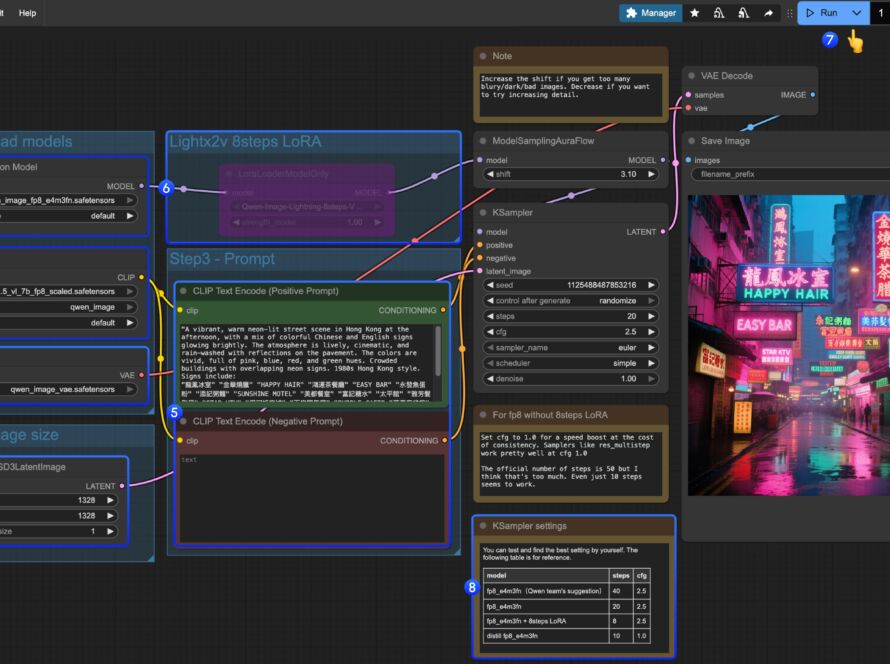
- Open ComfyUI → go to Workflows → load the video_t2v workflow.
- In Step 1 – Load Models, select:
- Diffusion Model → choose
wan2.2_t2v_high_noise_14B_fp8_scaled.safetensorsorwan2.2_t2v_low_noise_14B_fp8_scaled.safetensors. - LoRA → choose the corresponding
lightx2vLoRA file. - Text Encoder →
umt5_xxl_fp8_e4m3fn_scaled.safetensors. - VAE →
wan_2.1_vae.safetensors.
- Diffusion Model → choose
- Enter your text prompt in Step 3 and click Run.