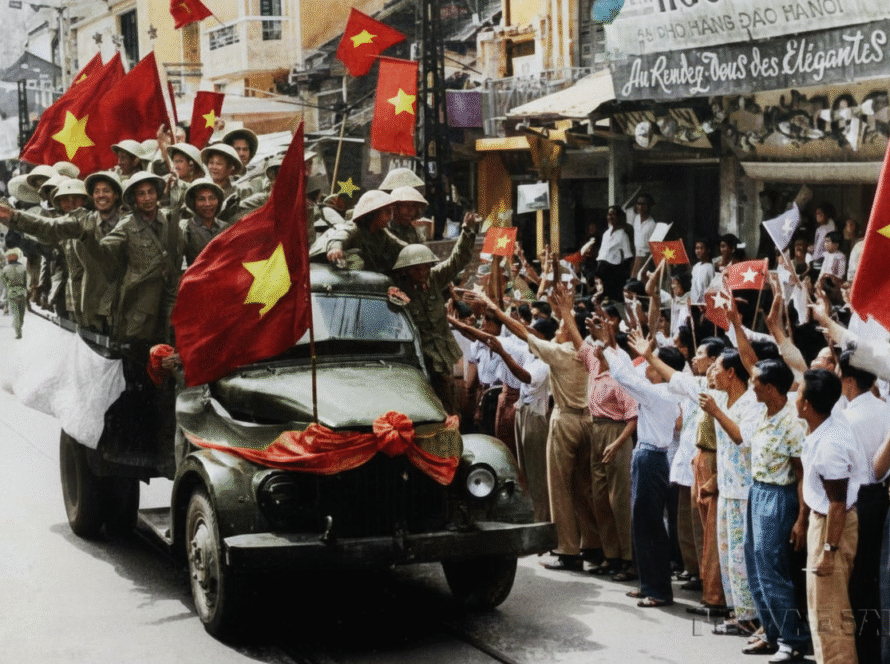
How to Merge Two Photos into One and Match Colors Perfectly Using AI
Merging two photos into one seamless image has become incredibly popular thanks to artificial intelligence. Whether you want to place two people in the same scene, create a family photo from separate images, or design marketing visuals, AI tools make the process faster and more realistic than ever. In this guide, you’ll learn how to insert two separate images into a single photo and adjust colors for consistency—using powerful AI tools like Gemini and ChatGPT for prompts, editing ideas, and workflows.
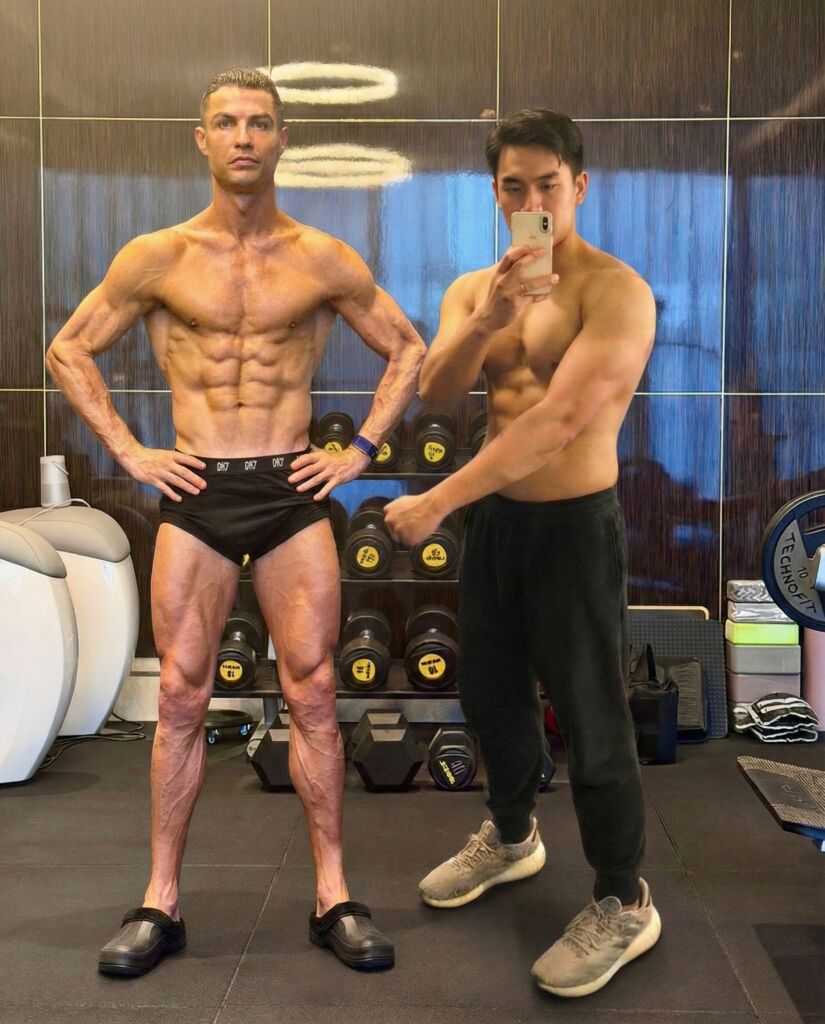
Why Combine Two Photos into One?
People merge images for many reasons:
- Creating a portrait of two people who were photographed separately
- Adding missing individuals into group photos
- Designing social media and marketing content
- Enhancing wedding, event, or travel shots
- Restoring or recreating old memories
- Producing AI-generated creative compositions
The key challenge is not just merging the subjects—it’s ensuring that posture, perspective, lighting, and color tone remain natural.
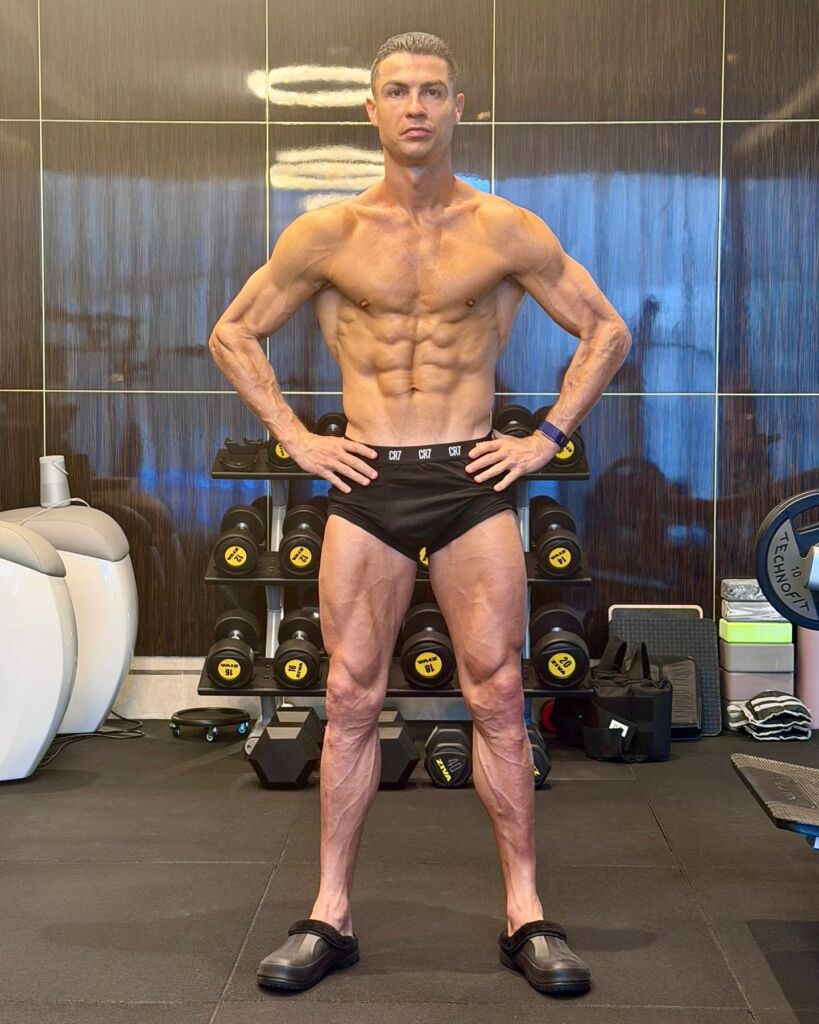
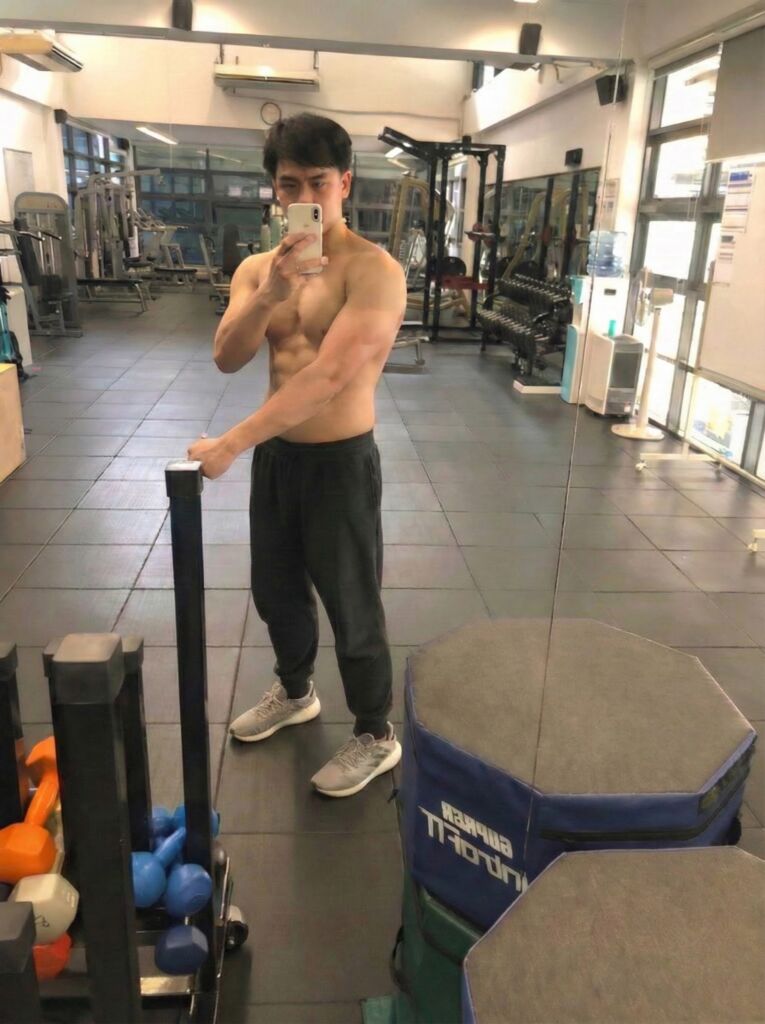
Key Techniques for a Realistic Photo Merge
To achieve a believable final image, focus on:
- Alignment and posture preservation
- Matching lighting direction
- Harmonizing color temperature
- Adjusting shadows and contrast
- Ensuring similar image resolution
AI tools have made this process easier than manual Photoshop editing.
Using AI Tools Like Gemini & ChatGPT for Better Prompts and Editing
AI language models help you:
- Create detailed editing prompts
- Suggest color matching styles
- Provide workflow steps
- Recommend editing apps
Example prompt using Gemini:
Combine Person A and Person B into one photo while keeping their original posture. Match skin tone and background lighting. Adjust color to create a warm cinematic tone.
Example prompt using ChatGPT:
Merge two photos into a single composition and harmonize colors. Preserve original pose and facial expression. Make the final image look natural and cohesive.
These models can also generate keywords for SEO, style inspiration, and filter ideas.
Top Tools for Merging Two Photos into One
Here are tools commonly used:
- Adobe Photoshop
- Photopea (free alternative)
- Luminar Neo
- Canva Pro
- CapCut AI
- Remini AI
- Midjourney / DALL-E / Stable Diffusion
With AI assistance:
- You upload two images
- Provide a prompt
- The tool blends them into a unified composition
For absolute beginners, Canva or CapCut are the most accessible.
How to Match Colors When Combining Two Photos
Once merged, adjust:
1️⃣ White Balance
Controls temperature & tint.
Warm tones → yellow/orange
Cold tones → blue/cyan
2️⃣ Exposure
Corrects brightness differences.
3️⃣ Contrast & Curves
Define shadows/highlights.
4️⃣ Color Grading
Use LUTs or filters like:
- cinematic teal-orange
- pastel tones
- vintage film
- modern digital clean tones
5️⃣ Skin Tone Correction
Ensure natural tones between subjects match.
AI photo editors can automate all these steps.
Tips for the Most Realistic Result
✔ Use images with similar resolution
✔ Maintain natural shadows
✔ Avoid over-smoothing skin
✔ Use subtle filters
✔ Match background blur + depth
A common mistake is matching colors too strongly, which may look artificial.
Example AI Prompt for Color Matching
Try this prompt:
Merge the two photos into one image while keeping the original posture. Adjust the color grading to be consistent across both subjects. Use a soft cinematic filter to balance skin tones and reduce noise.
Conclusion
Thanks to AI technology—especially tools like Gemini and ChatGPT—merging two photos into one realistic image has never been easier. With the right prompts, editing tools, and color adjustment techniques, anyone can achieve professional-quality results without advanced Photoshop skills.
Whether you’re creating personal memories or professional marketing visuals, mastering photo merging and color harmonization opens endless creative possibilities.