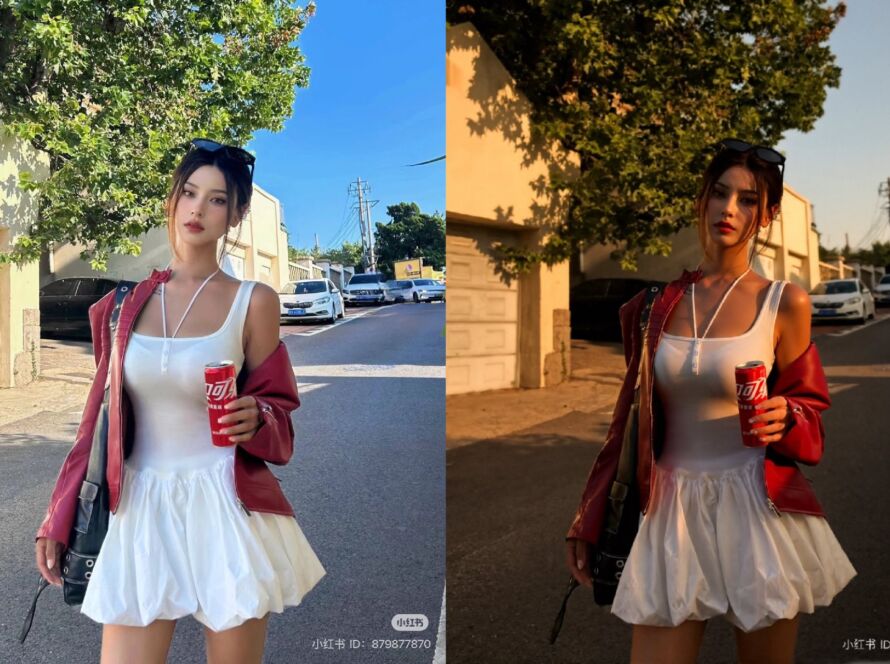
Relighting with Qwen Image Edit: How to Enhance Your Photos with AI
Artificial intelligence has transformed the way we edit and enhance images. One of the most exciting breakthroughs is Qwen Image Edit, a tool that enables AI-powered relighting—changing the light direction, tone, and atmosphere of a photo after it has been taken.
In this article, we’ll explore what relighting is, how Qwen Image Edit works, its current limitations, and how creators can build workflows with OpenArt to maximize results.


What is AI Relighting?
Relighting refers to the process of adjusting or completely altering the lighting conditions of an existing photo. Traditionally, this required complex editing in software like Photoshop, but AI can now simulate natural sunlight, golden-hour tones, or dramatic shadows with a single prompt.
For creators, photographers, and digital artists, relighting offers:
- Creative flexibility – Experiment with multiple lighting moods without retaking the shot.
- Time efficiency – Avoid reshoots or complicated studio setups.
- Consistency – Apply the same lighting style across multiple images.

Qwen Image Edit: Strengths and Limitations
Qwen Image Edit performs impressively well for portraits, lifestyle photography, and product shots. However, as noted by users:
- The model currently works with 2048-pixel square outputs, which means larger images may lose consistency.
- When objects or faces are small or distant, relighting can introduce slight distortions.
- The AI primarily interprets images from two edges (2D understanding), so depth can sometimes appear less accurate.
Despite these limitations, Qwen Image Edit is one of the most effective tools for quick relighting experiments.
Suggested Workflows on OpenArt

To improve results and bypass some limitations, here are practical workflows you can use on OpenArt:
1. Basic Relight Workflow
- Upload image → Select “Qwen Image Edit” → Enter lighting prompt (“golden hour sunlight” / “cinematic shadows”) → Download and compare.
- Use before-and-after side-by-side comparison blocks to evaluate lighting consistency.
2. Face Protection Workflow
- Step 1: Crop faces separately and enhance with Face Detail Model.
- Step 2: Run relighting on background + clothing.
- Step 3: Merge the enhanced face back using OpenArt’s inpainting tool.
This ensures faces stay natural even if relighting introduces distortions.
3. Multi-Lighting Variations Workflow
- Generate 3–5 variations (e.g., morning, afternoon, sunset, night street light).
- Use OpenArt’s Gallery View to compare mood variations and choose the best fit.
4. Upscale + Relight Workflow
- Run relight at 2048px.
- Use OpenArt’s AI Upscaler to enlarge images without losing detail.
- Apply additional fine-tuning with “Highlight/Shadow Recovery” filter.
5. Batch Workflow for Social Media
- Upload 5–10 images → Apply the same relight prompt → Export in batch.
- Great for maintaining consistent branding across Instagram, TikTok, or product catalogs.
Conclusion
Qwen Image Edit is redefining the way we approach photography and digital art. While it has some technical boundaries, its AI relighting capabilities open up endless creative opportunities. By combining it with OpenArt workflows, creators can achieve professional-quality photo edits in minutes—without advanced design skills.