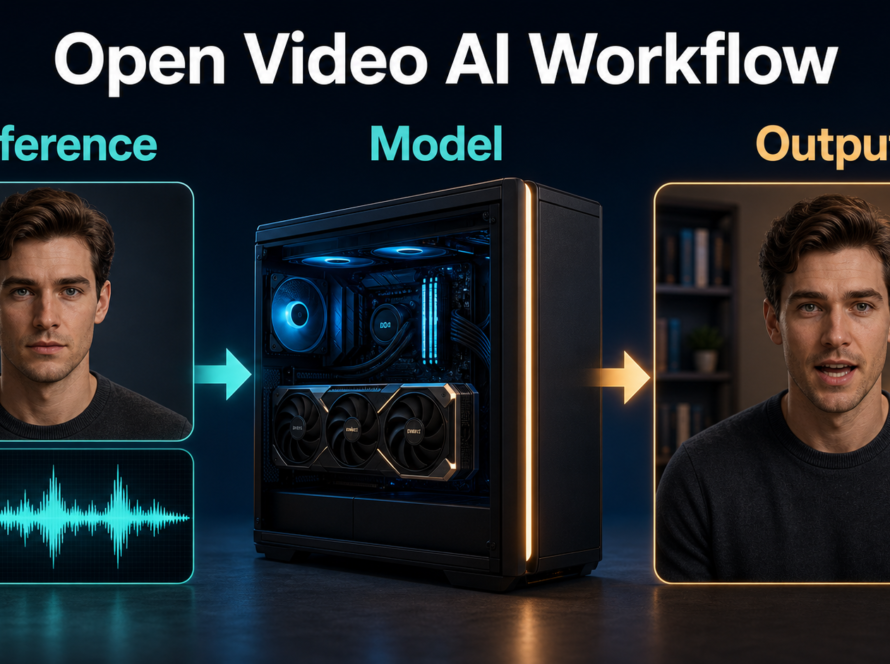
The most reliable ComfyUI video consistency workflow is to lock an approved character pack, keep model and conditioning branches modular, render short diagnostic clips, and change only one variable per test. ComfyUI can connect reference images, prompts, poses, audio, samplers, and exports in one reproducible graph, but the graph does not guarantee identity or voice continuity by itself. Consistency comes from controlled inputs, recorded settings, shot-specific references, and review at the first, middle, and final frames.
Updated August 2, 2026, this guide reflects ComfyUI core v0.29.2, released July 31, current official installation guidance, native video templates, and the separate licenses attached to each model. It explains a production pattern that works across supported image-to-video, audio-video, and speech-to-video workflows without pretending that every checkpoint accepts the same controls.
Table of Contents
What Changed in ComfyUI Video Workflows
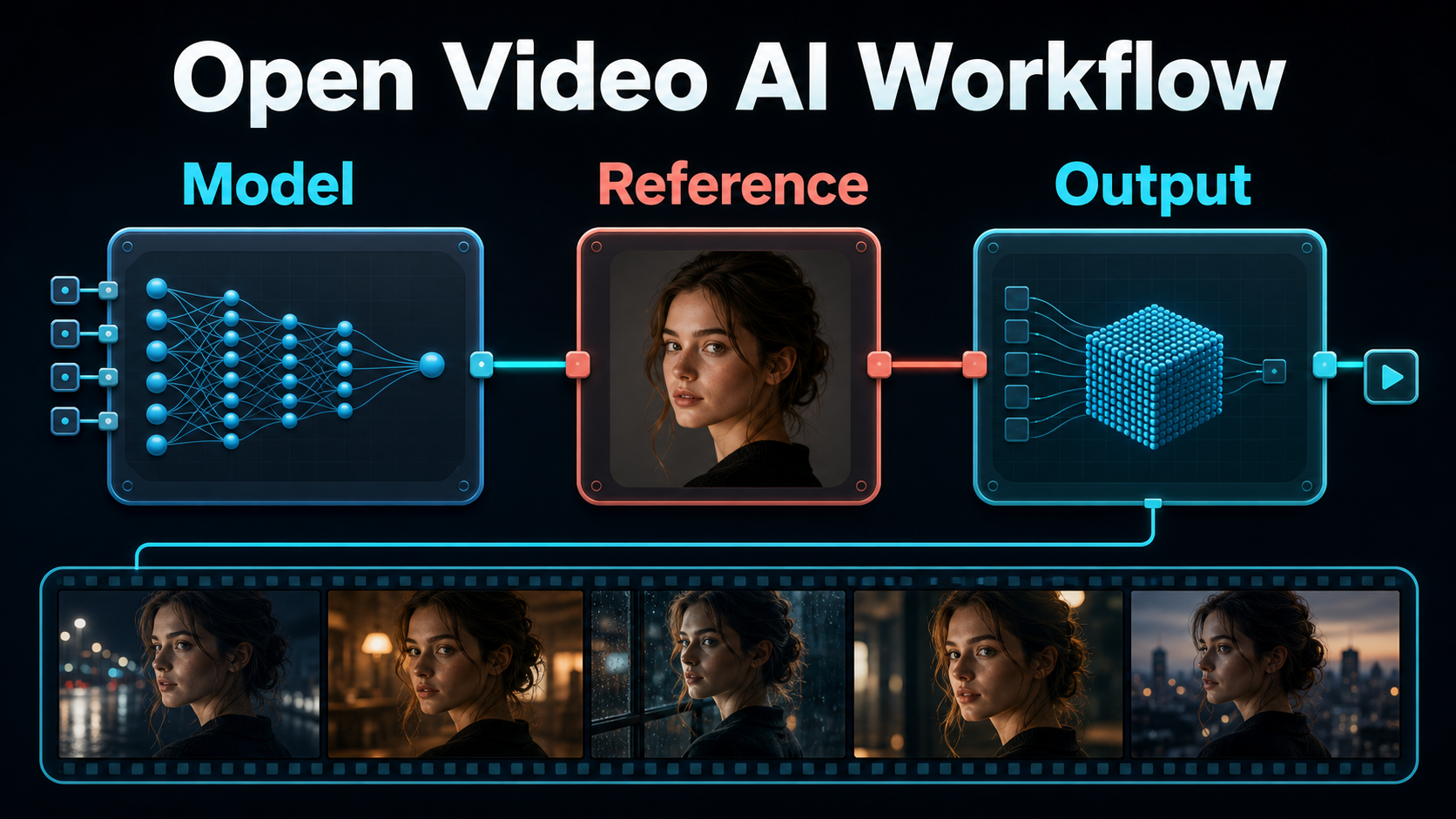
ComfyUI is now a broad visual creation engine rather than only an image-generation interface. Its official repository lists native or templated support for video families including Stable Video Diffusion, Mochi, LTX-Video, Hunyuan Video, Wan 2.1, Wan 2.2, and HunyuanVideo-1.5. The important production change is not a single magic consistency node: it is easier access to maintained templates, reusable subgraphs, partial execution, smart memory management, and model-specific video controls.
Current Release and Native Video Tools
The official v0.29.2 release was published July 31, 2026. ComfyUI follows frequent core and frontend release cycles, so pin a known working version for a production project rather than updating in the middle of approved shots. The official Workflow Templates browser checks for required model files and can prompt for downloads; official templates avoid third-party nodes.
Subgraphs can package a reference-conditioning or export branch into one reusable unit. Partial execution can run only the branch leading to a selected output node. Together, those features make consistency tests cheaper: preview the identity-conditioning output or a short video branch without rerunning unrelated audio, upscaling, or export stages.
License and Model Boundaries
ComfyUI core is distributed under GPL-3.0. That license covers the application code, not every checkpoint, LoRA, audio encoder, custom node, cloud API, or generated asset. Read the license or model card for every downloaded component and describe a model as open-weight when its terms do not meet an open-source definition. For commercial work, save a manifest containing filenames, source URLs, versions, hashes, and license references.
Hardware, Installation, and First Run
ComfyUI can offload models aggressively and its official repository says the engine can operate with very low VRAM, but that is not a promise that a large video model will render at a useful speed or resolution. The checkpoint, precision, frame count, spatial size, attention implementation, and optional upscalers determine the real memory demand.
Choose the Right Installation Track
| Route | Official scope | Best production use |
|---|---|---|
| Desktop | Windows with NVIDIA GPU and Apple Silicon; stable core can lag the newest changes | Simple managed installation and stable creative work |
| Windows Portable | Portable environment for Windows, with current NVIDIA, AMD, Intel, and CPU packages documented | Isolated tests and recent features without a system Python setup |
| Manual install | Windows, Linux, macOS, NVIDIA, AMD, Intel, Apple Silicon, and other supported accelerators | Controlled dependencies, servers, automation, or pinned environments |
| Cloud or API nodes | Online execution or partner services with separate pricing and terms | Hardware-limited teams after privacy and cost review |
Current official requirements recommend Python 3.13, with 3.12 as a fallback for custom-node compatibility. Follow the matching PyTorch instructions for the installed GPU. Do not mix random CUDA, ROCm, Python, and custom-node versions until the native baseline runs.
Build a Clean Baseline
- Install from the official ComfyUI repository, Desktop download, or portable release.
- Load a native video template from the template browser.
- Allow the template to identify required model files, then verify each source and license.
- Run the unmodified example at its documented size and settings.
- Save the working workflow JSON, console log, dependency versions, and one baseline output.
- Add custom nodes only when a native node cannot perform the required control.
Reference Image and Prompt Context
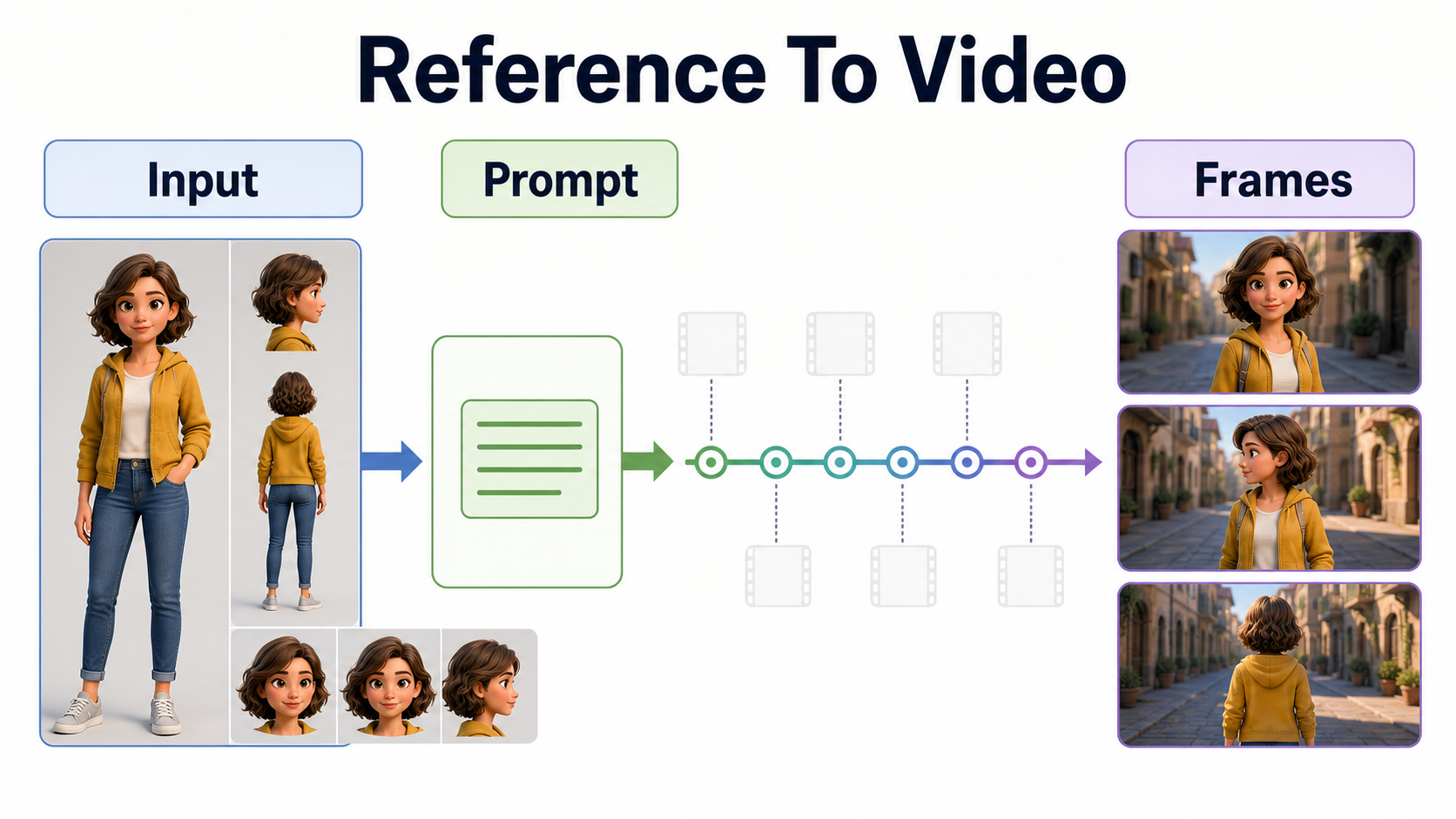
A reference image should define the visible facts that must survive motion. The prompt should define what changes through time. When both inputs compete to redesign appearance, the model may alternate between them and create identity drift.
Create a Reusable Identity Pack
- Use a neutral front portrait, three-quarter portrait, profile, full-body view, and close detail of distinctive clothing or props.
- Keep hair shape, age, skin detail, wardrobe colors, jewelry, and silhouette consistent across the pack.
- Create shot-specific starting frames at the final aspect ratio; do not force one headshot into every camera angle.
- Prepare a scene bible with set geometry, time of day, light direction, palette, and recurring background objects.
- Reject references with extra fingers, broken reflections, unreadable text, or anatomy that the video model may animate.
Use a Shot-Specific Prompt Template
[Shot size] of the same [character] wearing [locked wardrobe] in [fixed set].
At first, [opening pose]. Then [one clear action]. Finally, [ending pose].
Camera: [height], [angle], [one movement], [lens perspective].
Lighting: [key direction, contrast, color].
Preserve [face, hair, wardrobe, prop, set geometry].
Audio: [approved dialogue or ambience behavior, only if supported].
Example: “Medium shot of the same barista in a teal apron at the walnut counter. She sets down one cup, looks camera-left, and gives a small nod. Locked eye-level camera, natural 50mm perspective, soft window key from camera-right. Preserve face, short curls, apron pin, cup shape, counter layout, and morning color balance.” Keep the motion literal and testable.
Character, Scene, and Voice Consistency
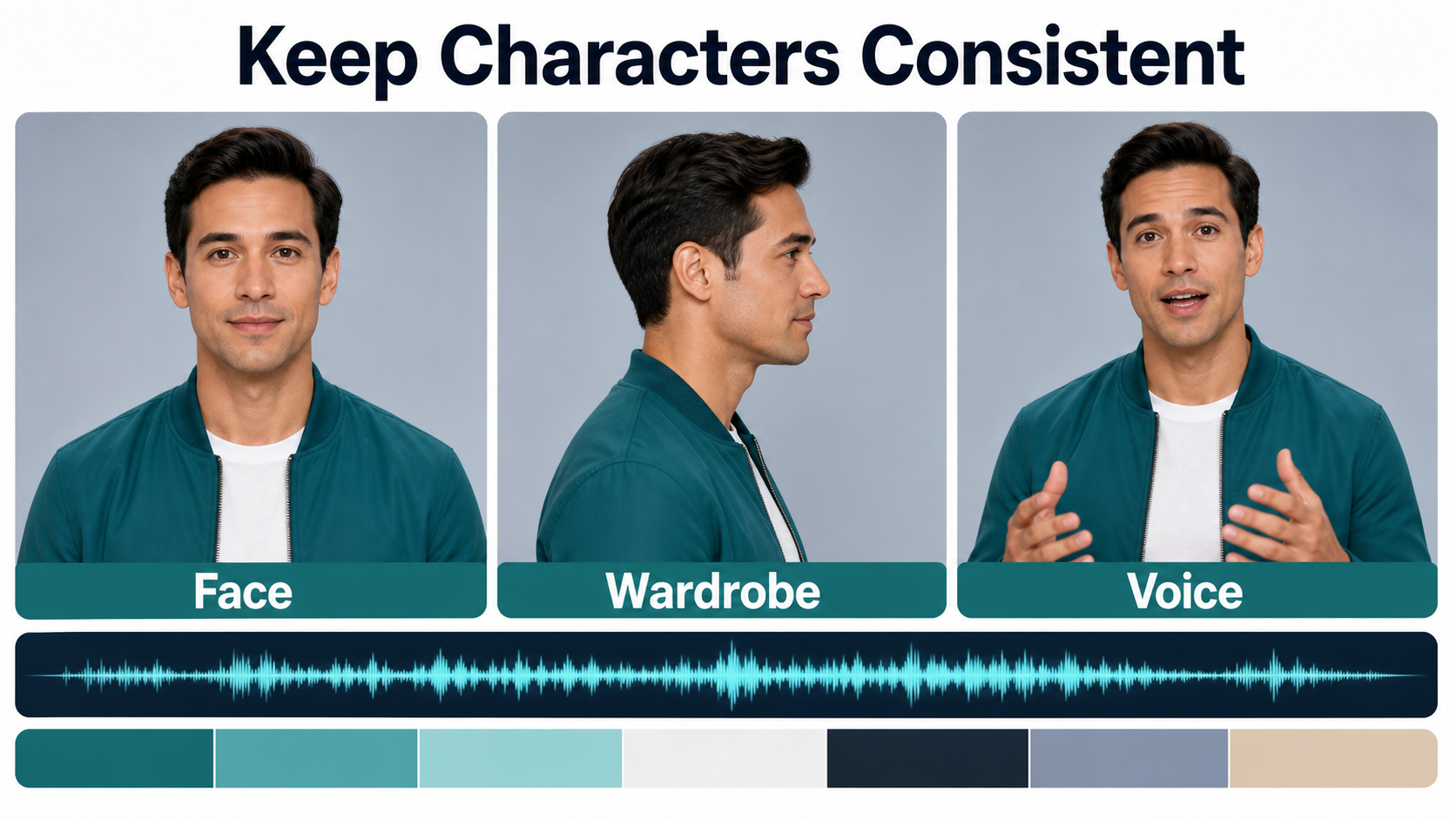
Separate identity, scene, motion, and audio into branches that can be inspected independently. A face change is not solved by adjusting the audio encoder, and a set-layout change is not necessarily a seed problem.
Lock Branches and Production Metadata
Create reusable subgraphs for model loading, reference conditioning, prompt conditioning, sampling, frame inspection, and export. Expose only the controls that should change per shot. Record the checkpoint and precision, VAE, text and vision encoders, LoRAs and strengths, seed, sampler, scheduler, steps, guidance, dimensions, frame count, frame rate, reference files, and workflow version.
Use the same seed only as a diagnostic control; it does not guarantee identity across different prompts or compositions. For scene continuity, compare horizon, vanishing lines, furniture, entrances, practical lights, weather, and color temperature. Review contact points and reflections because they often reveal drift before the face does.
Handle Audio as a Separate Control
Audio support is model-specific. The official Wan2.2-S2V native workflow uses a reference image, audio input, audio encoder, and extend subgraphs. The official LTX-2 workflow guide documents synchronized audio-video generation. Neither capability means ComfyUI invents a persistent voice identity across unrelated source clips.
For a recurring speaker, use one consented voice source, consistent recording distance, sample rate, loudness target, pronunciation guide, and room tone. Preserve the approved audio outside the workflow and drive each shot from that source when the selected model supports audio conditioning. Obtain explicit permission for voice cloning or likeness use, document provenance, and never imply a real person endorsed generated speech.
Practical ComfyUI Production Workflow
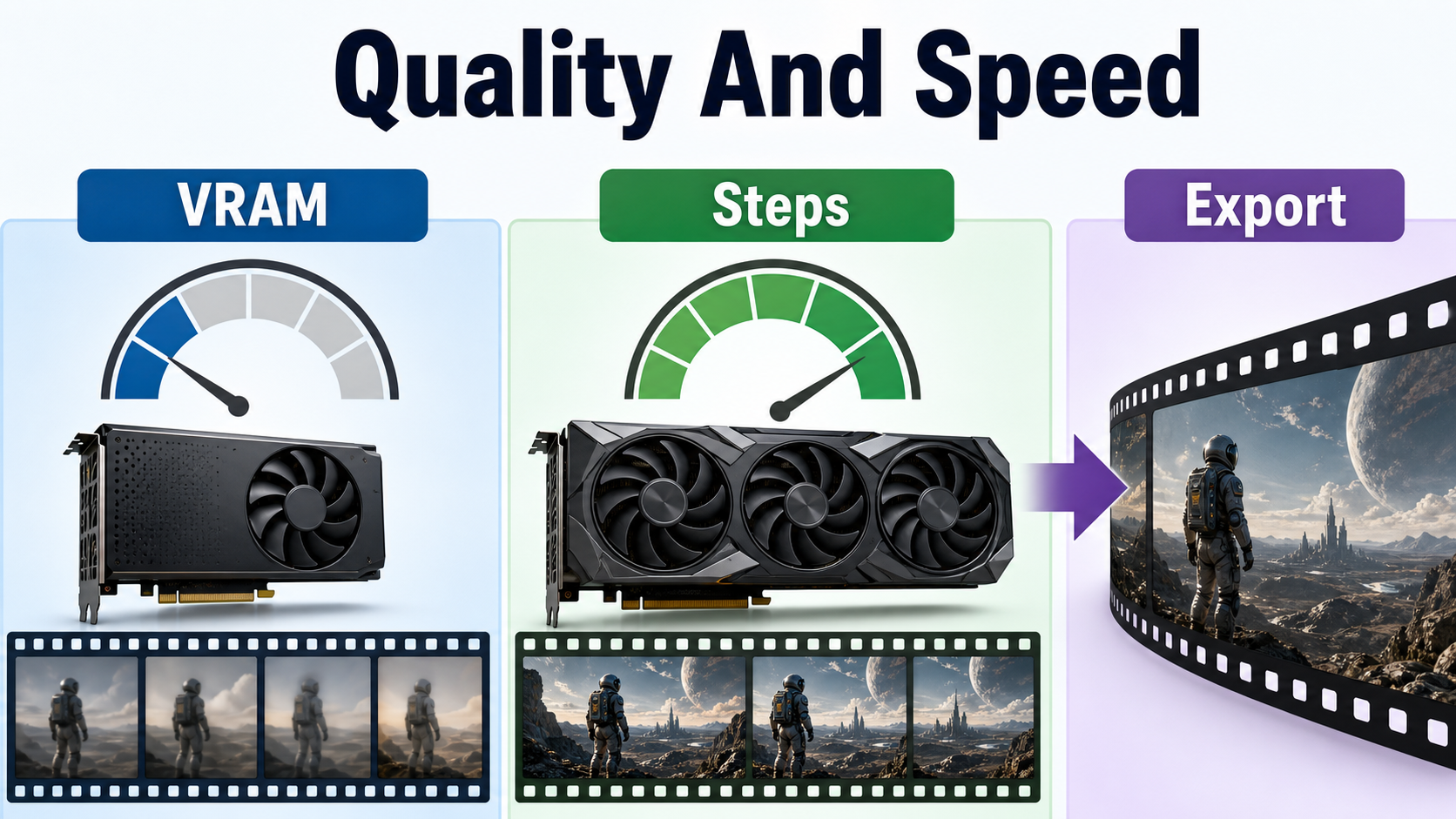
Use two passes: a short diagnostic render for graph logic and continuity, then a final-quality render only after the shot survives frame review. This separates debugging from expensive sampling.
Settings Checklist
| Control | Preview pass | Final pass |
|---|---|---|
| Model and encoders | Exact intended files at a memory-safe precision | Same verified family; change precision only after comparison |
| Resolution and frames | Short clip at a documented supported size | Increase one dimension or duration variable at a time |
| Steps and guidance | Template baseline or documented fast path | Documented quality path; avoid arbitrary extremes |
| Reference and prompt | One approved starting frame and one action | Same identity pack, refined motion, unchanged locked facts |
| Review | First, middle, final frames and obvious artifacts | Every cut point, lip motion, hands, props, geometry, and sound |
| Export | Lightweight review file | Mezzanine master plus delivery encode |
Repeatable Shot Process
- Write the narrative purpose and exact end frame.
- Choose a native template that matches text-to-video, image-to-video, or audio-driven generation.
- Confirm model files, licenses, and hardware feasibility before adding nodes.
- Load the identity pack, scene bible, approved audio, and shot-specific reference.
- Build modular branches and save a numbered workflow JSON.
- Run the native baseline, then a short diagnostic clip.
- Compare first, middle, and final frames for face, hair, wardrobe, props, set, light, and camera.
- Listen separately for timing, voice color, room tone, clipping, and unwanted generated speech.
- Change one input or setting, rerun only the necessary branch, and record the result.
- Render the accepted shot, archive its full manifest, and edit it beside neighboring shots.
Limitations and Troubleshooting
A node graph improves repeatability, not the model’s underlying understanding. Long clips, large camera changes, occlusion, mirrors, hands crossing faces, costume changes, fast speech, and unseen geometry can still break continuity. Custom nodes may lag behind core releases or execute unreviewed code; pin versions and test them away from production credentials.
Common Failures and Fixes
| Failure | Likely cause | Practical fix |
|---|---|---|
| Face changes mid-shot | Weak reference or too much motion | Use a sharper shot-specific reference, shorten the clip, and reduce occlusion |
| Wardrobe color drifts | Prompt conflict or changing light | Lock material and color wording; stabilize light direction and exposure |
| Set rearranges | Insufficient geometry or long reveal | Add clear depth cues, shorten camera travel, and preserve an endpoint reference |
| Lip motion misses audio | Wrong frame calculation, unsuitable model, or noisy speech | Use the model’s documented audio workflow, clean speech, and verify duration math |
| Out of memory | Model, precision, frames, or resolution exceed capacity | Return to the native baseline; lower one variable and enable supported offloading |
| Missing nodes | Old core, frontend, templates, or failed custom dependency | Update the correct package set or restore the pinned working environment |
| Final differs from preview | Several settings changed together | Promote the exact preview graph and change only the intended quality control |
Edit AI videos here
Trim weak opening or ending frames, cut around identity drift, align approved audio, match color, normalize loudness, add room tone, and assemble the accepted clips at https://ai.alphatechnologies.vn. Editing cannot repair every generative error, but a short stable shot often works better than a longer clip that exposes a continuity break.
Final Recommendation
Start with a maintained native template, prove the untouched baseline, and turn identity, scene, motion, audio, review, and export into separate inspectable branches. Lock references and metadata, keep tests short, and promote only settings that survive frame-by-frame and sound review. Explore more practical AI-video workflows on Aikolhub, then archive the workflow JSON and source manifest with every approved shot.
Frequently Asked Questions
Is ComfyUI open source?
Yes. ComfyUI core is GPL-3.0 open-source software. Model weights, LoRAs, custom nodes, API services, and assets can have different licenses, so verify each component separately.
How much VRAM does a ComfyUI video workflow need?
There is no universal number. Memory depends on the model, precision, resolution, frames, encoders, attention method, and offloading. Use the selected model’s official documentation and test its native template.
Does a reference image guarantee character consistency?
No. It supplies appearance and composition evidence, but motion, occlusion, camera changes, prompt conflicts, and model limits can still change identity.
Can ComfyUI keep the same voice across scenes?
It can route the same consented audio or supported audio conditioning through repeated workflows. Persistent voice identity still depends on the source audio and the selected model, not ComfyUI alone.
Should I use custom nodes for video?
Use them only when native nodes do not provide a required control. Review the source, pin a tested version, document dependencies, and keep a native baseline for recovery.
Official sources: ComfyUI repository and installation guidance; ComfyUI v0.29.2 release; ComfyUI GPL-3.0 license; official system requirements; manual installation guide; Workflow Templates; Subgraph guide; Partial Execution guide; Wan2.2-S2V native workflow; LTX-2 native workflow.