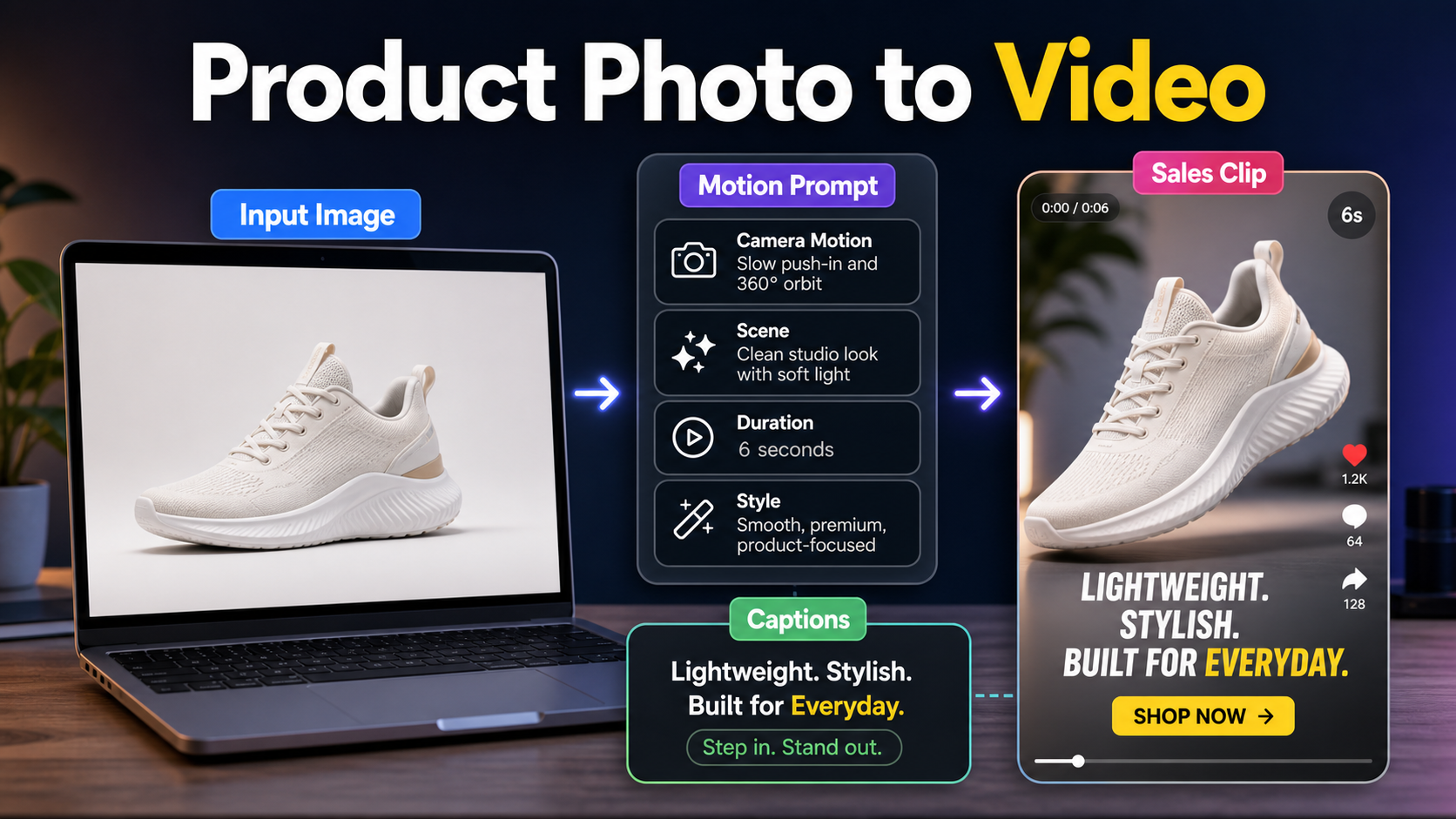
Image to video AI turns a still product photo into a short moving clip by using the image as the first frame, subject reference, or visual anchor, then applying a motion prompt. For ecommerce teams, creators, marketers, and AI tool users, the practical value is speed: one good product photo can become a vertical ad, product teaser, launch reel, or marketplace video without a full studio shoot.
Updated June 24, 2026: official docs from OpenAI, Google, Runway, and Luma confirm that modern video tools now support image-guided video workflows, but pricing, output length, resolution, audio support, and commercial terms vary by platform. Check the official page before building a paid campaign or production API workflow.
What is image to video AI?
Image to video AI is a workflow where you upload or generate an image, then ask a video model to animate it. The model may keep the input as the opening frame, preserve the product as a reference, or use first and last frames to guide a transition. The prompt describes camera motion, subject movement, lighting, scene changes, and the mood of the final clip.
For product marketing, this is most useful when the product already looks good in a static shot. The AI does not replace product strategy. It extends a clean asset into motion: a slow push-in on a sneaker, steam rising from coffee packaging, a skincare bottle rotating under soft light, or a phone case appearing in a lifestyle setup.
Quick answer: when should you use it?
Use image to video AI when you need fast short-form video from existing product assets, not when you need legally exact product demonstrations or complex hands-on usage. It is strongest for teaser clips, hero background videos, social ads, A/B creative tests, pitch decks, and product mood shots.
| Use case | Best approach | Watch out for |
|---|---|---|
| Social product teaser | Use one hero product photo and a simple camera prompt. | Keep motion subtle so the product shape does not drift. |
| Marketplace video | Use a clean product shot, neutral background, and factual captions. | Do not show features the product does not have. |
| Ad concept testing | Generate several 4-8 second variants with different hooks. | Review brand safety, claims, and text accuracy. |
| Launch reel | Combine 3-5 generated clips in a video editor. | Add captions and CTA outside the generation model when possible. |
Official model details checked today
The main official pattern is consistent: video models increasingly accept image inputs, but each provider exposes different controls. OpenAI’s Sora API documentation explains video generation with size and duration choices, including clips up to 20 seconds and higher-resolution exports with Sora 2 Pro. Google documents image-to-video generation with Veo 3.1, including a workflow where an image is used as the starting frame. Runway’s API documentation lists multiple text-or-image video models, and its pricing page uses per-second credits. Luma’s API page positions Ray3.2 for video generation and Uni-1 for image generation in multimodal creative workflows.
| Platform | Officially checked capability | Practical note |
|---|---|---|
| OpenAI Sora API | Video generation with duration and size controls. | Good for teams already building on OpenAI; verify current model access and pricing. |
| Google Veo 3.1 | Image-to-video with an image input, reference images, first/last frames, and video with audio. | Strong option when you need API docs, resolution choices, and audio-aware output. |
| Runway API | Text-or-image video models such as Gen-4.5, Gen-4 Turbo, Veo 3.1, Seedance 2, and HappyHorse 1.0. | Useful for creative teams that want many model choices and clear credit budgeting. |
| Luma API | Ray3.2 video generation and Uni-1 image generation for consistent multimodal workflows. | Good to test for cinematic product motion; confirm API terms and plan limits. |
For pricing, Google lists Veo 3.1 paid API prices per second, including Standard, Fast, and Lite tiers by resolution. Runway states that credits cost $0.01 each and lists model credit rates per second. If a platform does not show a public API price for your exact workflow, treat the price as not officially confirmed.
Prepare the product photo before generation
The quality of the still image usually determines the quality of the video. Use a sharp photo, simple lighting, visible product edges, and a background that matches the campaign.
Product photo checklist
- Use the highest-resolution product photo available.
- Keep the product fully visible, with no cropped corners or hidden labels.
- Avoid tiny package text if the model must preserve it exactly.
- Remove distracting background objects unless they are part of the scene.
- Choose the final aspect ratio early: 9:16 for Reels/TikTok/Shorts, 1:1 for feeds, 16:9 for YouTube or landing pages.
- Keep brand claims, prices, and legal text for the editing stage, not inside the generation prompt.
Write motion prompts that preserve the product
The best image-to-video prompts describe camera movement more than product transformation. For sales clips, your goal is usually to make the scene feel alive while keeping the item recognizable. Ask for a slow push-in, gentle orbit, soft light movement, subtle fabric motion, steam, reflections, or a clean background reveal.
Use this prompt pattern:
Use the uploaded product image as the visual reference. Preserve the product shape, color, materials, and visible details. Create a 6-second vertical product ad. Camera: slow push-in with a slight left-to-right orbit. Scene: clean studio background with soft premium lighting. Motion: subtle highlights and realistic shadow movement. Do not change the product design. No extra logos. No unreadable text.For ecommerce ads, add a second line for the intended edit:
Leave empty space in the lower third for captions and a call-to-action that will be added later in the video editor.Add final captions, prices, offer details, and CTA buttons in a deterministic video editor whenever accuracy matters.
Workflow: from one image to a sales clip
A reliable workflow separates generation from editing. Let the video model create motion, then use a video editor for exact captions, trims, resizing, music, subtitles, and brand-safe export.
Step 1: Pick one selling angle
Choose one message: lightweight design, premium materials, before/after transformation, limited launch, or product fit. A narrow message gives the model and editor a clearer job.
Step 2: Generate three motion variants
Create one subtle camera push, one orbit, and one lifestyle reveal. Keep the same product image and change only the motion line.
Step 3: Review product accuracy
Reject clips where the shape changes, labels melt, materials look wrong, packaging changes size, or product features appear that do not exist.
Step 4: Add captions and CTA in editing
Add the hook in the first second, a benefit caption in the middle, and a CTA at the end. For paid ads, keep claims factual and check platform rules.
Step 5: Export platform versions
Export 9:16 for short-form feeds, 1:1 for ecommerce and social grids, and 16:9 for landing pages or YouTube.
Pros and cons of image to video AI
| Pros | Cons |
|---|---|
| Turns existing product images into motion quickly. | May alter product shape, labels, or material details. |
| Useful for testing hooks before paying for a shoot. | Generated text is not reliable enough for legal or price details. |
| Works well for social ads, launch teasers, and concept videos. | Pricing can rise fast with long clips, high resolution, and many retries. |
| API workflows can automate product catalog videos. | Commercial terms and model access differ by provider and region. |
Cost planning for product video tests
Budget by seconds, retries, and accepted clips. If a model charges per second, a five-second clip with four rejected variants costs very differently from one accepted clip. Track input image, prompt, model, duration, resolution, generation date, final decision, and reason for rejection.
For a small campaign, start with 10 products, 3 variants per product, and 5-6 seconds per variant. Review the accepted rate before scaling because rejected generations raise the real cost per finished ad.
Checklist before using clips in ads
- Confirm the product shape, color, packaging, and visible features are accurate.
- Remove or replace distorted in-video text.
- Check usage rights for the source image, generated video, music, font, and voiceover.
- Do not imply product performance that has not been proven.
- Keep a record of prompt, model, date, source image, and final export.
- Recheck official pricing before launching a large automated workflow.
Edit AI videos here
After generating product motion, finish the clip in a proper editor so captions, cuts, music, and CTA text are accurate. You can edit AI videos here: https://ai.alphatechnologies.vn. This is the practical place to turn image-to-video outputs into platform-ready ads, product reels, short tutorials, or launch clips.
Final recommendation
Image to video AI is best used as a fast creative layer, not as an unchecked replacement for product production. Start with one strong photo, write a motion-focused prompt, generate a few short variants, reject inaccurate outputs, and finish the final clip with real captions and brand controls.
For creators and marketers, this workflow can turn a product catalog into a testing library for short-form sales clips. For developers, it can become an automated video pipeline once pricing, QA, storage, and rights are documented. Explore more AI video, image, audio, and marketing tools on Aikolhub to build the right production stack for your content workflow.
FAQ
What is image to video AI?
Image to video AI uses a still image as a starting frame or visual reference, then generates motion based on a text prompt. It is commonly used for product clips, social ads, and creative tests.
Can image to video AI preserve product details?
It can preserve the main product look, but it may change labels, edges, logos, texture, or proportions. Always review the generated clip before publishing or advertising.
What is the best prompt for product videos?
Use a prompt that asks for subtle camera motion, product preservation, clean lighting, and empty caption space. Avoid asking for complex transformations unless the product is not required to stay exact.
Should captions be generated by the video model?
Usually no. Add captions, prices, offers, and CTAs in a video editor because generated text can be distorted or inaccurate.
How long should an AI product video be?
For ads and social posts, 4-8 seconds is a practical starting point. Longer clips cost more, take longer to render, and create more chances for visual drift.
Is image to video AI safe for commercial use?
It can be used commercially only if your source image, model terms, generated output rights, music, and final edit all allow it. Check the official terms for the specific provider and plan.