Why run Stable Diffusion locally?
Running Stable Diffusion locally gives you more privacy, repeatability, and workflow control than using a hosted image generator. Instead of uploading every prompt, reference image, or product concept to a third-party interface, you run the model on your own computer and decide which models, settings, extensions, and outputs you want to use.
This guide was updated on June 13, 2026. It is written for creators, marketers, and AI tool users who want a practical local image-generation setup without pretending that every machine can run every model perfectly.
What is Stable Diffusion local?
Stable Diffusion local means you run an image generation model on your own hardware, usually through a desktop interface such as ComfyUI or AUTOMATIC1111 Stable Diffusion WebUI. The model files are stored on your machine, and your prompts are processed locally instead of being sent to a hosted image app.
The core benefit is control. You can choose a model such as Stable Diffusion XL, Stable Diffusion 3.5, SD 1.5, or a specialized checkpoint. You can also add LoRA files, ControlNet workflows, upscalers, inpainting, image-to-image steps, and repeatable seeds.
When local Stable Diffusion makes sense
| Use case | Why local helps | What to watch |
|---|---|---|
| Private product concepts | Prompts and reference images stay on your machine. | You still need to review model licenses before commercial use. |
| Repeatable brand visuals | Seeds, models, LoRAs, and workflows can be reused. | Good file organization matters. |
| High-volume image testing | No per-image API fee after setup. | Your GPU speed becomes the bottleneck. |
| Advanced image editing | ComfyUI workflows can chain inpainting, upscaling, and ControlNet. | There is a learning curve. |
| Open-source experimentation | You can test community models and tools quickly. | Only download models from trusted sources. |
Hardware requirements
The best local setup uses an NVIDIA GPU with enough VRAM. Many workflows can run with 8 GB of VRAM, but larger models, high resolutions, and complex node graphs are more comfortable with 12 GB, 16 GB, or more. Some tools can run on CPU or other GPU backends, but generation will usually be slower.
If your machine is limited, start with smaller workflows and lower resolutions. Generate at 768×768 or 1024×1024 first, then upscale only the images worth keeping. Local AI image generation is a balance between speed, memory, quality, and patience.
ComfyUI vs AUTOMATIC1111
ComfyUI and AUTOMATIC1111 are the two common paths for beginners and advanced users. Both can run Stable Diffusion locally, but they feel different.
| Tool | Best for | Learning curve |
|---|---|---|
| ComfyUI | Node-based workflows, repeatable pipelines, advanced control. | Medium to high. |
| AUTOMATIC1111 WebUI | Classic text-to-image, image-to-image, extensions, quick experimentation. | Low to medium. |
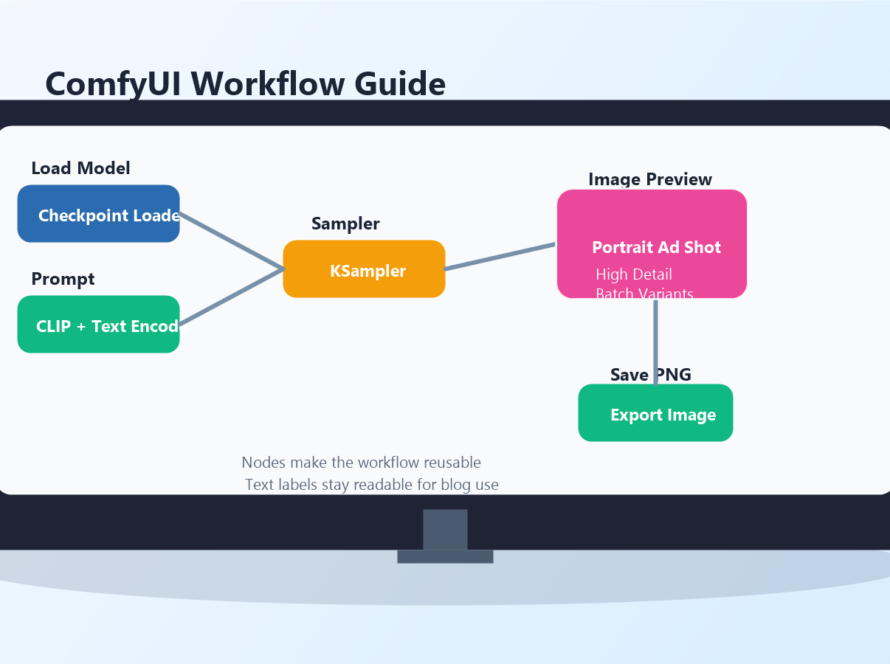
Choose AUTOMATIC1111 if you want a familiar interface and fast prompting. Choose ComfyUI if you want to build reusable workflows where each step is visible: model loading, prompt encoding, sampling, image decoding, upscaling, and saving.
Step-by-step local workflow
1. Choose your interface
Start with one tool, not three. If you are a beginner, AUTOMATIC1111 may feel easier. If you want to learn professional AI image pipelines, ComfyUI is worth the extra effort because it makes the workflow structure explicit.
2. Download trusted model files
Use official or well-known model sources such as Stability AI pages, Hugging Face model cards, or official project repositories. For Stable Diffusion 3.5, Stability AI provides model cards on Hugging Face, including model details and license information. Read those notes before using a model commercially.
3. Put models in the right folder
Each interface has specific folders for checkpoints, VAEs, LoRAs, embeddings, and ControlNet models. Keep names clear. A messy model folder makes it harder to reproduce results later.
4. Start with a simple prompt
Do not begin with a giant prompt. Start with subject, style, lighting, camera, and output purpose. Then add detail only when the image direction is working.
Product photo of a matte black wireless speaker on a clean studio table, softbox lighting, premium ecommerce style, shallow depth of field, realistic materials, no text, no logo5. Save settings with the final image
For real work, save the prompt, negative prompt, model name, sampler, steps, CFG scale, seed, size, and date. This makes it possible to reproduce a successful look for a campaign, blog series, or product catalog.
Recommended beginner settings
There is no universal perfect setting, but a safe beginner workflow is: start at 1024×1024 for SDXL-style workflows, keep steps moderate, use a fixed seed when testing variations, and avoid stacking too many extensions at once.
- Start with one checkpoint.
- Generate 4 to 8 test images before changing the model.
- Use image-to-image for controlled variations.
- Use inpainting for small corrections instead of regenerating everything.
- Upscale only after the composition is already good.
Common mistakes
Installing too many models immediately
Beginners often download dozens of checkpoints before learning one workflow well. Start with a small set, then add LoRAs or specialized models only when you know what problem they solve.
Ignoring licenses
Open model does not always mean unrestricted commercial use. Read the model card and license. If a client project, ad, or product page depends on the image, keep a record of the model and license you used.
Using random seeds for everything
Random seeds are useful for exploration, but fixed seeds are better when you are testing prompt changes. If you want repeatability, save your seed.
Generating at high resolution too early
High resolution costs memory and time. First solve composition, subject, style, and lighting. Then upscale or refine.
Privacy and safety checklist
- Do not download model files from unknown mirrors.
- Keep private client images in a separate project folder.
- Record model name, source URL, and license notes.
- Review outputs for logos, faces, text, and brand-sensitive details.
- Do not assume a generated image is automatically safe for advertising.
Edit AI videos here
After generating still images locally, you may want to turn them into product clips, social videos, or short visual scenes. You can edit AI videos here: https://ai.alphatechnologies.vn. This is useful when a Stable Diffusion image becomes a thumbnail, storyboard frame, product scene, or motion concept for a campaign.
Conclusion
Running Stable Diffusion locally is best when you want privacy, repeatability, and deeper creative control. For a simple one-off image, a hosted tool may be faster. For recurring brand visuals, product concepts, SEO illustrations, and advanced editing workflows, a local setup can become a powerful creative system.
Start small: choose ComfyUI or AUTOMATIC1111, install one trusted model, save your settings, and build a repeatable workflow before adding complexity. Explore more AI image, video, and audio tools on Aikolhub to find the right workflow for your content pipeline.
FAQ
Is Stable Diffusion free to run locally?
The software and many model files can be downloaded without a per-image fee, but you still pay for your computer hardware, electricity, storage, and any commercial tools you add.
Do I need a powerful GPU?
A GPU is strongly recommended. Some setups can run on CPU, but local image generation is much slower without a suitable GPU.
Should beginners use ComfyUI or AUTOMATIC1111?
Use AUTOMATIC1111 if you want a simpler interface. Use ComfyUI if you want to understand and reuse advanced node workflows.
Can I use local Stable Diffusion images commercially?
It depends on the model license, input images, and project context. Always read the model card and license before using outputs commercially.
What is the safest first workflow?
Start with text-to-image at a moderate resolution, save the seed and settings, then use image-to-image or inpainting for refinements.