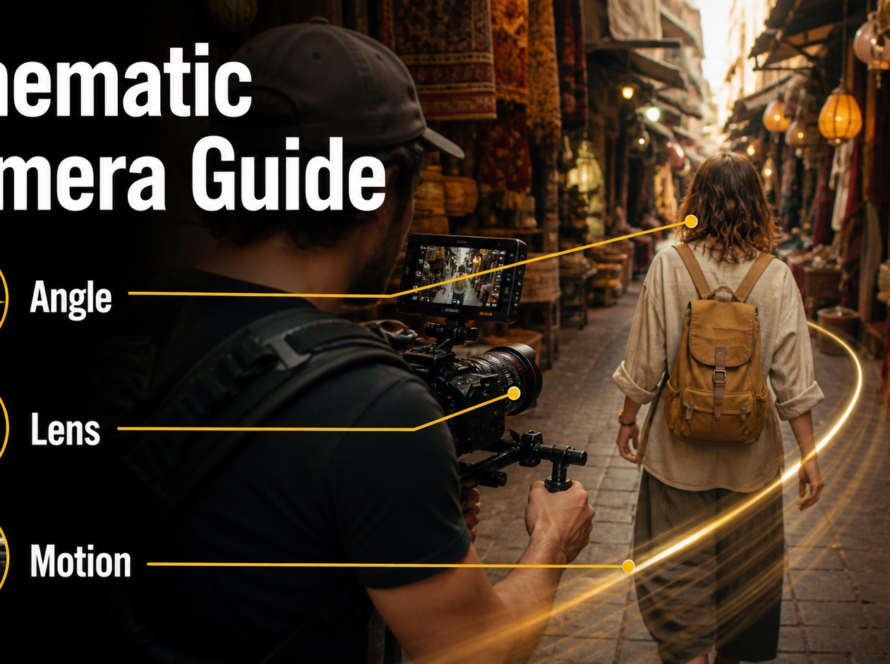
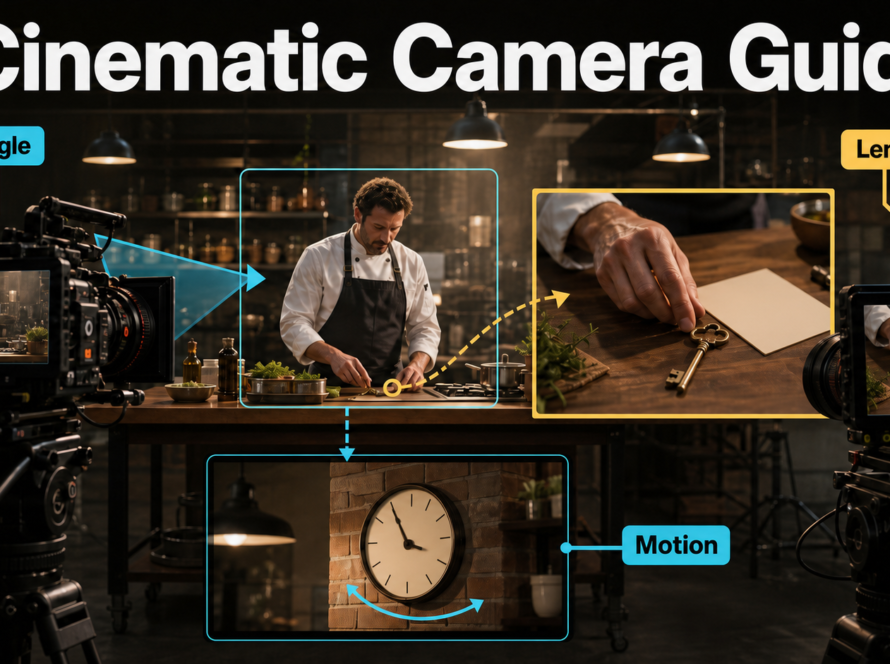
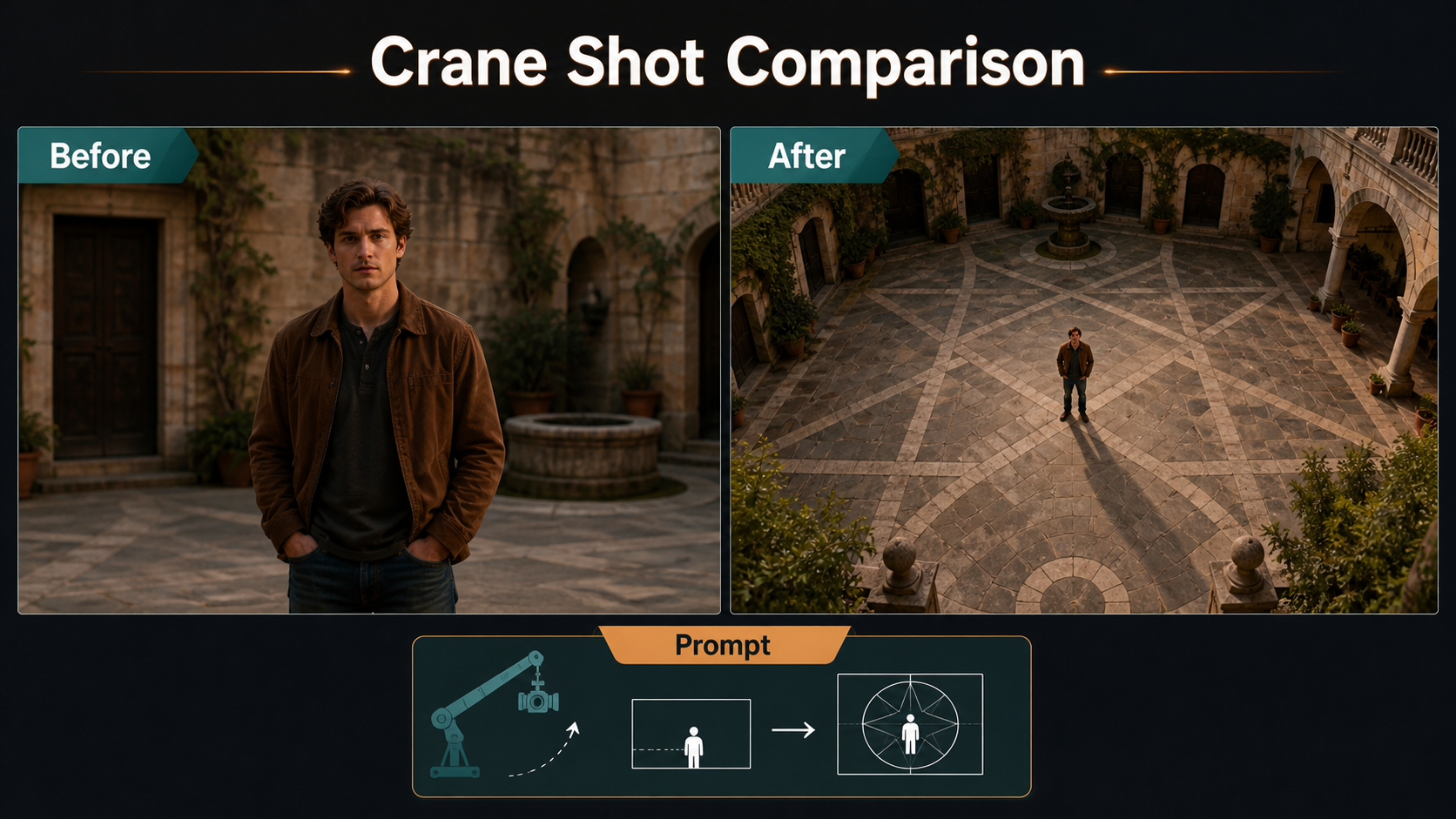
A convincing AI-video crane or boom shot moves the camera vertically through real-looking space, changing height, perspective, foreground overlap, and how much of the location is revealed. Define a low and high endpoint, one smooth path, camera orientation, subject blocking, and a restrained speed. A rising picture, digital zoom, or tilt from a fixed position is not the same move.
Updated August 6, 2026, this guide separates established cinematography from current generative control. Official CameraCtrl, CamI2V, RealCam-I2V, MotionCtrl, and UCPE research can condition video with camera trajectories or geometry, but a commercial prompt box may only interpret words. Judge the visible result rather than assuming that the word “crane” guarantees a physical path.
Table of Contents
What Crane and Boom Moves Mean
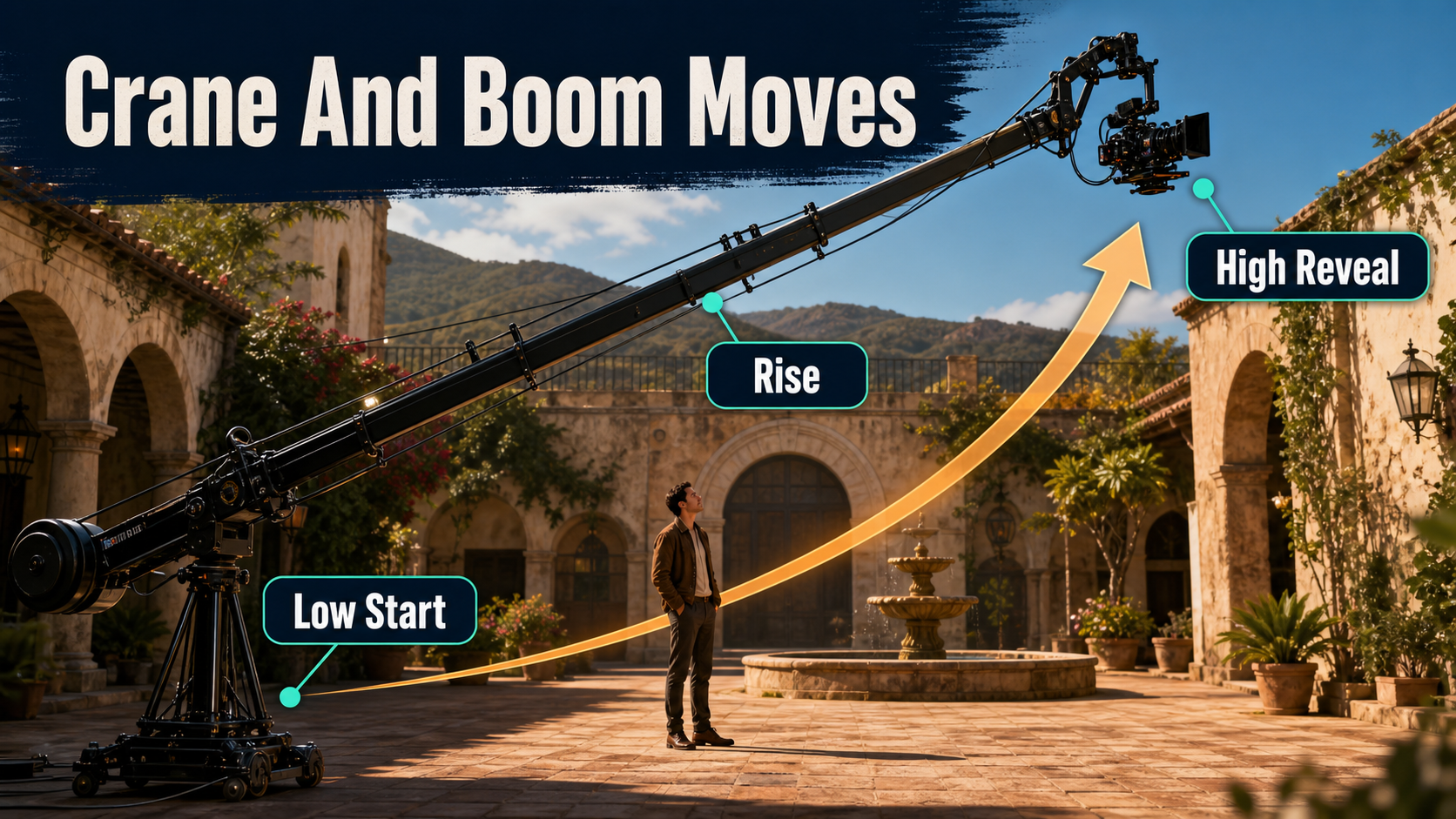
A crane shot places the camera on a lifting arm or crane so it can travel vertically and often laterally while remaining aimed at the action. A boom move is the upward or downward travel itself. In casual production language, creators also say “jib up” or “jib down.” For AI video, the useful instruction is not the equipment name but the path: where the camera begins, where it ends, what it points toward, and what the move reveals.
Visual and Emotional Meaning
A rise can begin close to a person and open into a wide view of a crowd, building, landscape, or consequence. That transition can create release, scale, discovery, isolation, or a chapter-ending overview. A descent can do the reverse: turn geography into intimacy, locate a person inside a large space, or concentrate attention on a clue.
The emotional result depends on timing. A slow rise after a decision feels reflective; a quick lift during action can feel energized or unstable. If the subject remains small while the world expands, the shot can suggest vulnerability. If the camera finishes close and heroic from below, the same vertical motion can communicate power.
Crane Versus Tilt, Pedestal, and Drone
- Tilt: the camera rotates up or down from a fixed position; there is no translational parallax.
- Pedestal: the whole camera rises or falls on a vertical support, usually with less arc than a crane.
- Crane or jib: the camera travels on an arm around a pivot, often creating a curved path plus vertical translation.
- Drone: a free-flying camera can imitate a large rise, but its acceleration, clearance, and atmosphere are different.
- Zoom: focal length changes from one position; field of view changes without the same depth translation.
Plan the Camera Path and Blocking
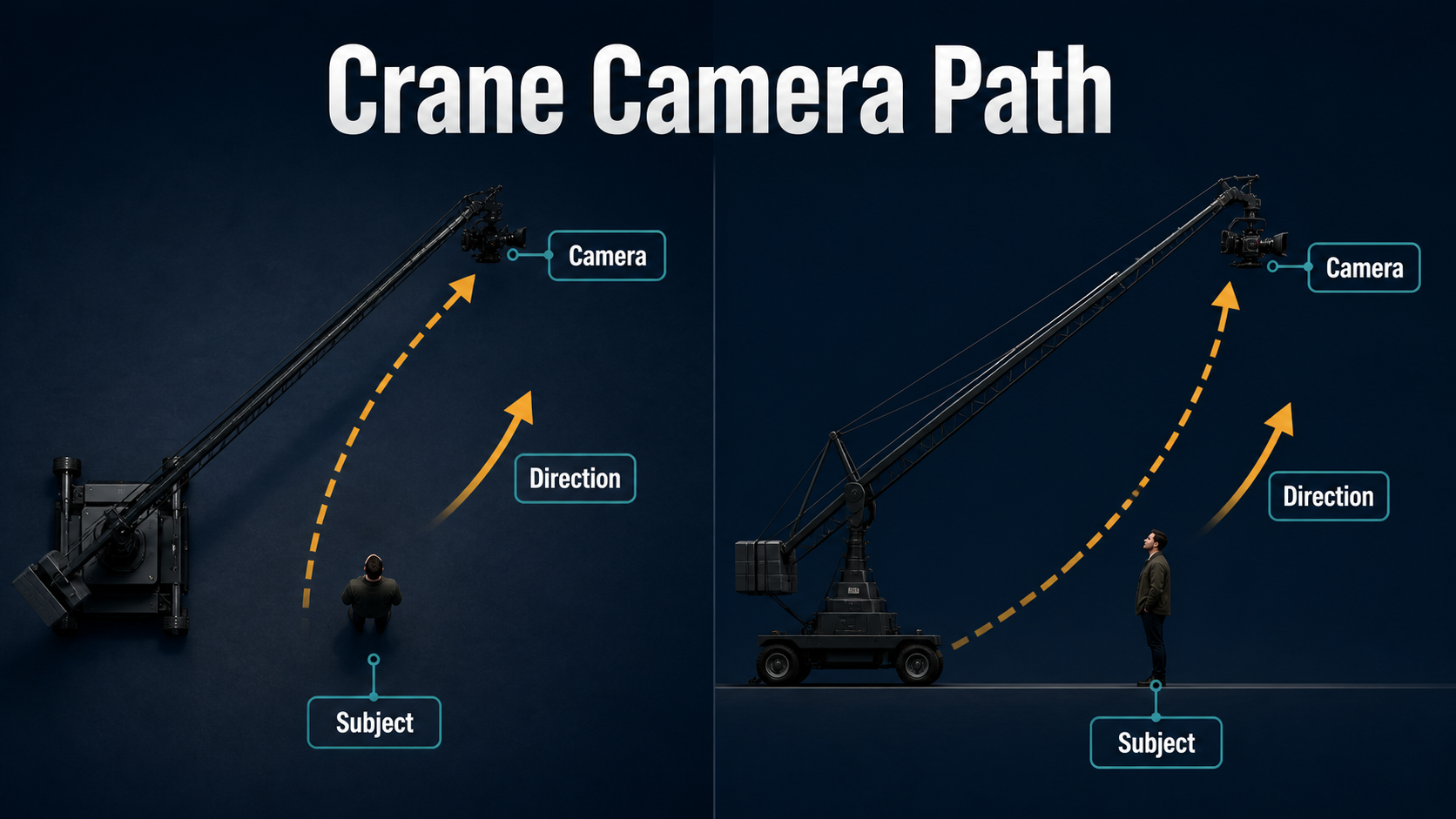
Draw the move in side and top views. The side view shows height, arm arc, lens height, ground clearance, and what becomes visible. The top view shows the subject, pivot, optical axis, foreground objects, and whether the camera also travels sideways. This simple map prevents contradictory prompt clauses.
Set Low and High Endpoints
Describe both compositions, not just “camera cranes up.” For example: begin at waist height in a medium shot of the baker at the counter; rise three meters on a gentle backward arc; maintain the baker on the lower third; finish in a wide overhead-leaning view that reveals the full kitchen. Even when a prompt-only model cannot measure three meters, the endpoints and screen relationship give it observable targets.
- Keep one dominant direction: rise or descend.
- State whether the lens stays aimed at the subject, tilts gradually, or holds a fixed world direction.
- Choose a clear easing profile: gentle start, steady middle, gentle stop.
- Limit the path until foreground and background geometry remain coherent.
- Use a visible floor, vertical lines, and depth layers so translation can be judged.
Coordinate Subject Action and Clearance
Start with simple performance. A subject can look up, walk to a mark, or complete one gesture while the camera rises. Running, spinning, interacting hands, fabric motion, and a large camera move all at once increase the number of unseen surfaces the model must invent. Keep the face clear of the crane path and plan foreground occlusions so columns, branches, or signs do not slice through it.
Lens, Aperture, Shutter, and Frame Rate
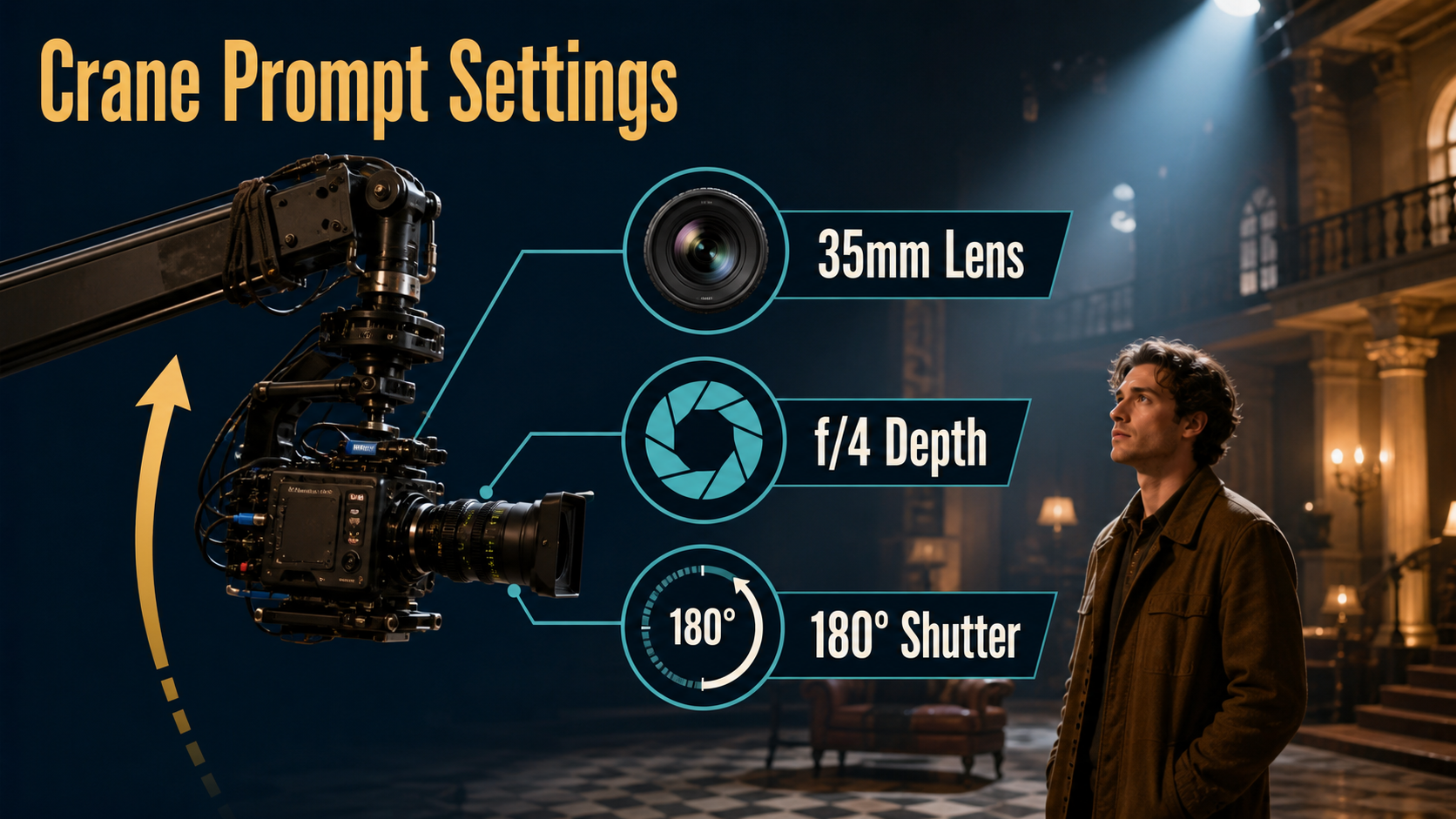
Position creates perspective; focal length controls field of view from that position. Aperture wording describes the desired depth-of-field look, while frame rate and shutter wording describe temporal rendering. None replaces the trajectory.
Choose Perspective and Depth
| Choice | Practical use | Inspect |
|---|---|---|
| 24-28mm look | Large environmental reveal | Edge stretching and exaggerated foreground speed |
| 35mm look | Balanced subject-to-location transition | Readable face and strong spatial change |
| 50mm look | Restrained rise with less wide-angle distortion | Enough room to show the reveal |
| f/4-like depth | Moderate separation with useful geography | Subject and reveal remain legible |
| Continuous focus | Changing camera-to-subject distance | No pulsing or background lock |
A very shallow depth look can hide background errors, but it also hides the parallax that proves the camera moved. For an explanatory reveal, moderate depth is usually clearer.
Render Motion Cleanly
Begin with 24 fps and a 180-degree shutter look when matching conventional cinematic motion. Use a shorter shutter look for crisp fast movement or a longer one for heavier blur, but do not add blur simply to cover broken geometry. Slow acceleration and deceleration matter: an instant launch often produces a frame jump, while an abrupt stop can warp the final composition.
Reference Image and Prompt Workflow
The opening reference should match the first frame, final aspect ratio, wardrobe, props, light direction, and intended screen position. Create a separate endpoint board even if the model accepts only one image. It becomes an acceptance target for camera height, set reveal, subject size, and horizon.
Build Useful Start and End References
- Include a readable ground plane and vertical architecture.
- Leave headroom and lateral space for the arm path.
- Keep the subject silhouette distinct from the background.
- Show stable wardrobe, hair, hands, and hero props.
- Remove tiny signs, mirrors, crowds, and repeating patterns from the first test.
- Match lighting direction in both boards so the reveal does not invent a second sun.
Crane and Boom Prompt Templates
RISING CRANE REVEAL
Begin in a [shot size] of [same subject] at [low camera height] in [location].
The camera rises smoothly on a gentle crane arc while staying aimed at [focus target].
Keep [subject screen position], [lens look], level roll, and continuous focus stable.
End in [exact high composition] revealing [specific environment].
No zoom, static tilt, orbit, handheld shake, or abrupt acceleration.
DESCENDING CRANE INTRODUCTION
Start high above [location] in a wide view.
Descend slowly toward [same subject] on a controlled forward arc.
Transition to [ending shot size] at [camera height] with a [lens] perspective.
Preserve architecture, wardrobe, light direction, and horizon.
Ease gently into the final frame.Example: “Start at chest height in a medium shot of the same chef beside the courtyard table. The camera cranes upward and slightly backward on one smooth arc, staying aimed at the chef. Keep a natural 35mm perspective, moderate f/4 depth, level roll, and continuous focus. End in a wide high view revealing the fountain and surrounding arches. No digital zoom, orbit, drone wobble, or fast tilt.”
Model Workflow and Settings Checklist
Use explicit trajectory data when the selected implementation supports it. Prompt wording communicates creative intent; per-frame camera poses, translations, orientations, rays, or metric paths provide stronger conditioning. Neither reconstructs all hidden geometry from a single image.
Verified Camera-Control Options
The official CameraCtrl repository uses camera positions and orientations to control video diffusion and includes trajectory preparation. CamI2V publishes camera-controlled image-to-video checkpoints and reports 12 GB inference memory for its 16-frame 256-by-256 research setting in the technical paper. Its related RealCam-I2V explores more complex and metric-scale control. UCPE exposes research controls for camera intrinsics, distortion, pitch, and roll. MotionCtrl separates camera and object motion conditions.
These repositories have different base models, resolutions, hardware assumptions, and licenses. Their capabilities should not be attributed automatically to a hosted generator that only offers a text field.
Repeatable Shot Workflow
- Write the story purpose and exact start and end frames.
- Draw the pivot, camera path, optical axis, subject, and clearance.
- Select lens look, depth, focus, frame rate, shutter look, and duration.
- Create opening and endpoint references at the final aspect ratio.
- Enter one-direction prompt language or load a supported trajectory.
- Render a short diagnostic clip with simple subject action and a saved seed.
- Inspect height change, scale, perspective, parallax, horizon, occlusions, identity, and endpoints.
- Change one variable: path scale, duration, reference, prompt clause, or seed.
- Add complex performance only after the camera behavior passes.
- Cut the approved result beside neighboring shots before mastering.
Limitations and Troubleshooting
A large rise reveals roofs, floors, background depth, and unseen sides of people and objects. The model may stretch the set, make the subject shrink, tilt instead of translate, replace the move with a zoom, or drift into an orbit. Longer paths magnify these errors.
Common Failures and Fixes
| Failure | Diagnosis | Fix |
|---|---|---|
| Looks like a tilt | View rotates but parallax is absent | State vertical translation and add foreground depth layers |
| Looks like a zoom | Field of view changes from a fixed position | Lock focal-length look and define changing camera height |
| Subject shrinks too quickly | Path retreats too far | Reduce backward travel or specify stable screen scale |
| Set bends during reveal | Too much unseen geometry | Shorten the move and simplify architecture |
| Horizon rolls | Orientation is underconstrained | Request level roll or use an orientation-aware control |
| Face changes | Small subject plus occlusion | Use a sharper reference and a shorter rise |
| Start or stop jumps | No easing or shot too short | Request gentle acceleration and extend handle frames |
Edit AI videos here
Trim unstable acceleration, hide a warped reveal, match the movement to music, add ambience, and connect the high frame to a wide shot at https://ai.alphatechnologies.vn. A shorter coherent rise usually feels more cinematic than a long move that exposes geometry drift.
Final Recommendation
Design a crane shot as two compositions connected by one physical path. Keep the first test short, use moderate perspective and depth, separate camera motion from subject action, and approve the endpoint before adding spectacle. Explore more practical AI-video workflows on Aikolhub, then validate every generated move by perspective and parallax rather than its label.
Frequently Asked Questions
Is a boom shot the same as a crane shot?
They overlap. Boom describes the camera rising or falling on an arm; crane shot often describes the complete rig and compound path.
What lens works best for a crane shot?
A 35mm-like perspective is a useful starting point because it balances subject readability with an obvious environmental reveal. Choose by story and camera distance.
How do I stop a crane shot becoming a zoom?
Lock the focal-length look, define a changing camera height, include depth layers, and check that foreground and background move at different rates.
Can one reference image define the whole move?
No. It anchors visible content but does not show roofs, floors, reverse surfaces, or the high endpoint. Build a separate endpoint reference for review.
Do camera-control models guarantee an exact path?
No. Explicit conditioning improves control, but scene reconstruction, occlusions, subject motion, and model limits can still create path or geometry errors.
Official sources: CamI2V repository; RealCam-I2V repository; CameraCtrl repository; UCPE repository; MotionCtrl repository; CamI2V technical paper.