The safest Wan2GP low-VRAM local setup is the official installer, a model matched to your GPU, the default memory profile, and a short 480p test before a long render. WanGP can run selected models with as little as 6 GB of VRAM, but that is not a universal minimum. Model size, resolution, frames, quantization, attention backend, system RAM, and post-processing all change the requirement.
Verified August 5, 2026, the current repository headline is WanGP v12.42. The application is source-available under the WanGP Community License 2.0, not an OSI-approved open-source license. It permits free local and internal business use but restricts paid hosted, SaaS, API, white-label, and embedded commercialization without a separate license. Every downloaded model, LoRA, voice model, and dataset keeps its own terms.
Table of Contents
What Changed
WanGP has grown beyond its original Wan-only launcher into a local interface for video, image, audio, and text-to-speech families. The August 5 release adds MiniMax H3 FL2VA and Ref2VA workflows, Spectrum step skipping, lower-RAM text encoders, a memory-priority selector, SeedVR2 integration, and replacement pruned checkpoints. The repository lists Wan 2.1/2.2, LTX-2, HunyuanVideo 1/1.5, LongCat, Kandinsky, LTXV, and other video families, but availability can change with each update.
What Low VRAM Means
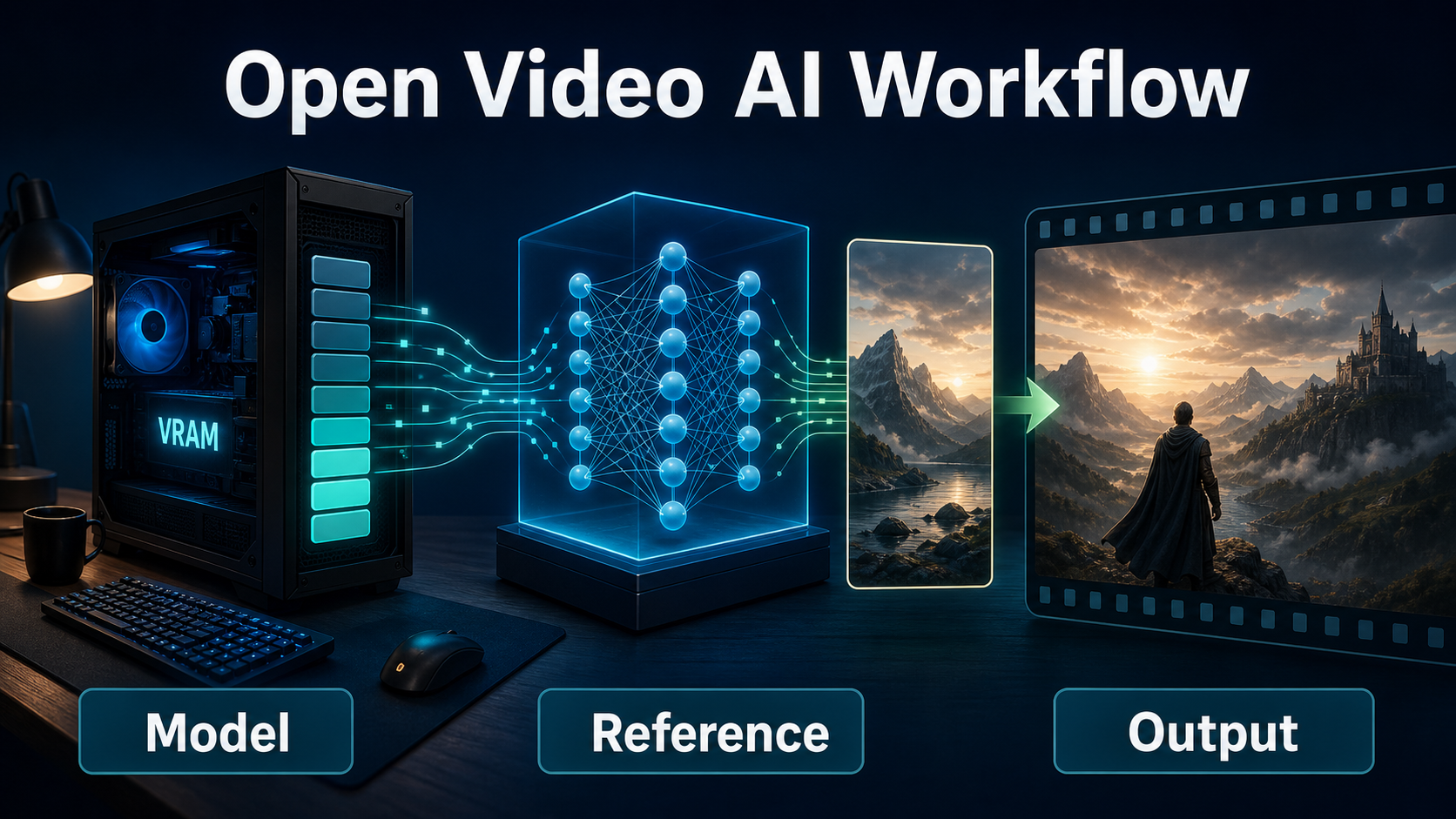
WanGP reduces peak graphics-memory pressure through component loading, offloading, quantized formats, optimized kernels, and model-specific paths. Low VRAM does not mean low total memory or fast rendering. Offloaded tensors occupy system RAM and move across the bus; longer clips and larger frames increase latent, attention, and decoder workloads. The official six-gigabyte statement applies only to selected configurations.
The v12.42 notes report MiniMax H3 at about 5–6 GB VRAM for five seconds at 832×480 and 8–9 GB for 15 seconds. Treat those as project-reported configurations, not guarantees. Drivers, browser GPU use, checkpoint variants, other apps, and upscalers can change the peak.
License Terms
Do not call the complete WanGP stack open-source without qualification. Its Community License 2.0 allows local use, modification for your own use, internal company use, and output creation. It restricts selling WanGP, paid hosted/API access, white-labeling, and embedding it as a paid feature without a separate agreement. Direct output sales require reasonable WanGP credit. Model weights and third-party code are separate: read every model card before commercial work.
Hardware and Installation
Use Windows or Linux with a supported GPU and enough free system RAM and disk for the chosen model. The repository documents AMD RDNA 2 through 4 support and early Apple MPS support, but model coverage and speed vary. Back up a working environment before upgrading because Python, PyTorch, CUDA, Triton, and attention kernels must remain compatible.
Safe Install Path
The easiest route is the official scripts/install.bat on Windows or scripts/install.sh on Linux/macOS. These scripts manage an isolated environment and offer update and environment actions. Manual installation is for users who can diagnose Python and CUDA conflicts. The August 5 guide recommends Python 3.11.14 with PyTorch 2.10 and CUDA 13.x for RTX 30–50 series, while GTX 10 series uses another tested stack. Follow the live document rather than an old tutorial.
git clone https://github.com/deepbeepmeep/Wan2GP.git; cd Wan2GP; run scripts/install.bat on Windows or scripts/install.sh on Linux; start with the matching run scriptPut the project on a drive with generous free space. Checkpoints can be many gigabytes, while output frames, caches, upscalers, audio, and finetunes accumulate quickly.
First-Launch Checklist
- Update the GPU driver before changing the Python stack.
- Close games, renderers, and GPU-accelerated browser tabs.
- Start with the default memory profile and quantization.
- Select one small or documented low-memory model.
- Allow the first checkpoint download to finish completely.
- Generate a short low-resolution test before optional kernels.
- Record version, model, checkpoint, profile, seed, peak VRAM, and time.
Weights and Memory Profiles
Pick the workflow first, then the checkpoint. Text-to-video, image-to-video, reference-conditioned video, talking avatars, native audio-video, and video editing are different tasks. A smaller model is often the best diagnostic choice even when your GPU can technically offload a larger one.
Starting Targets
| Hardware | Safe first test | Avoid initially |
|---|---|---|
| 6–8 GB VRAM | Documented low-memory model, 480p, 49–81 frames | Long clips, 1080p decode, multiple LoRAs, upscaling |
| 10–12 GB VRAM | Short 480p/720p test, one reference, moderate steps | Assuming every large model fits without offload |
| 16 GB+ | Validate at 480p, then raise resolution or duration | Changing every quality setting together |
| Limited RAM | Quantized text encoder and lower-RAM priority when supported | Large offloaded models plus memory-heavy apps |
Profile 4 is the documented default and flexible option. It loads model parts as needed. A profile that keeps more transformer data in VRAM can be faster only when it truly fits. Otherwise, out-of-memory failures or swapping erase the benefit. Quantization lowers memory and may change fidelity or kernel compatibility, so compare with the same prompt and seed.
Memory Traps
VRAM is only one budget. Watch system RAM, page-file or swap activity, disk space, and decoder peaks. A job may finish diffusion and fail during VAE decode or upscaling. Chrome can reserve graphics memory; WanGP offers CPU-only Chrome scripts, and its July notes report possible savings depending on the system. Measure your machine.
Reference Image and Prompt Context
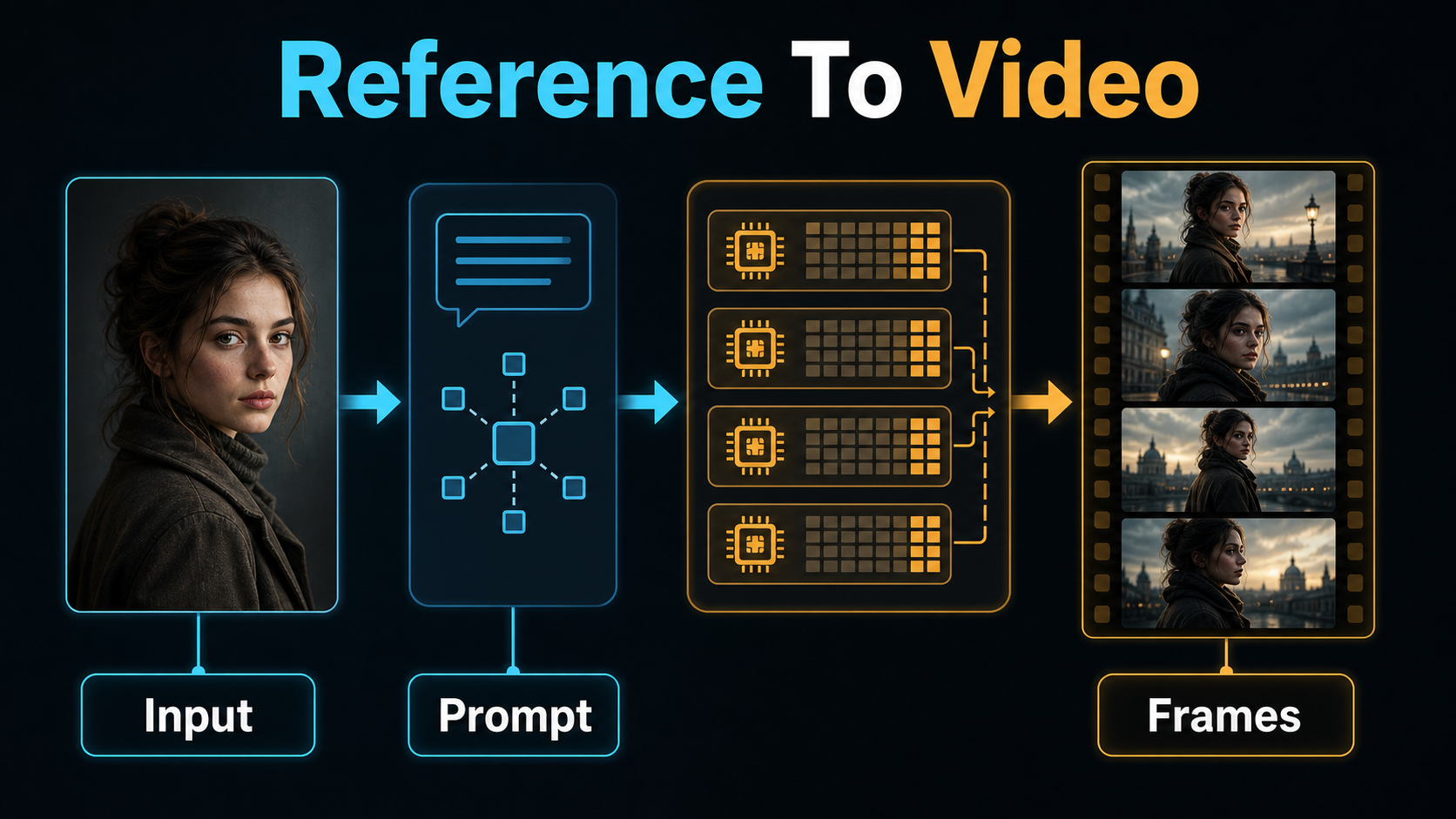
A reference image supplies pixels; prompt context says what must remain and what may change. Start images fix the opening composition for compatible models. Reference images may guide identity, scene, or objects without becoming the first frame. End-frame and control-video inputs serve different purposes. Use only controls the selected model supports.
Reference Pack
- Character sheet: clear front and three-quarter views, neutral face, visible hands.
- Wardrobe card: exact colors, materials, seams, and accessories.
- Prop card: shape, scale, markings, and holding hand.
- Environment plate: geography, furniture, weather, and light direction.
- Shot reference: target ratio, camera height, angle, crop, and opening action.
Use the minimum references needed. Conflicting faces, lighting, or perspectives force the model to average incompatible evidence. Keep filenames and prompt labels stable across shots.
Prompt Template
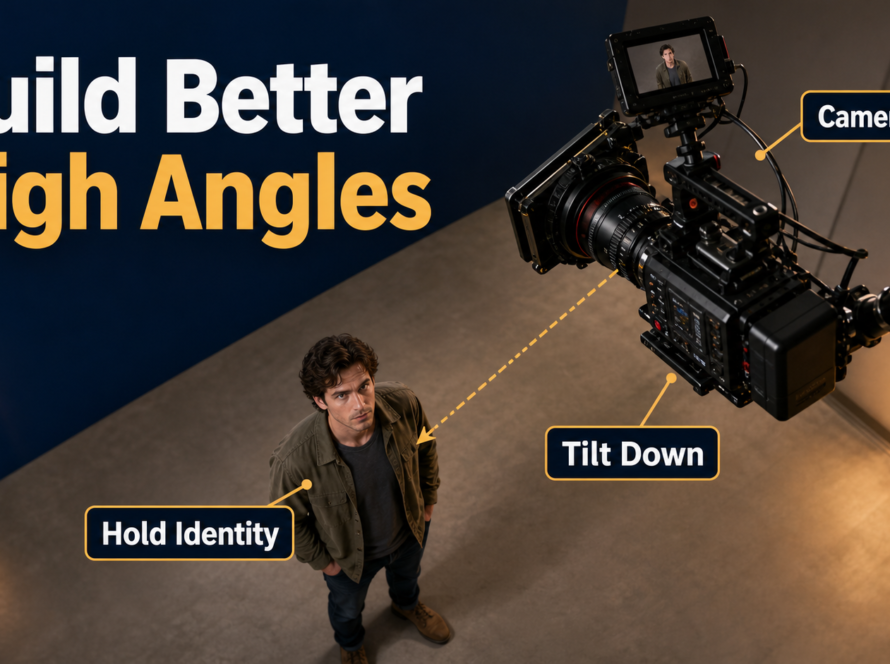
[Shot size] of the same [character], wearing [fixed wardrobe], performing [one action] with [fixed prop] in [environment]. Camera: [height and angle], [one movement], [focal-length look]. Exposure: [aperture], 180-degree shutter, 24 fps. Lighting: [key], [fill], [practical]. Preserve face, hair, wardrobe, prop hand, set geometry, and screen direction. No reframing, lens change, drift, extra limbs, text, or logos.For a low-risk test, choose an eye-level medium shot, natural 50 mm perspective, f/4 depth-of-field look, locked camera, soft key, and restrained motion. Camera terms describe a visual target, not guaranteed physical metadata. Exact motion may require a trajectory, reference frames, or control video.
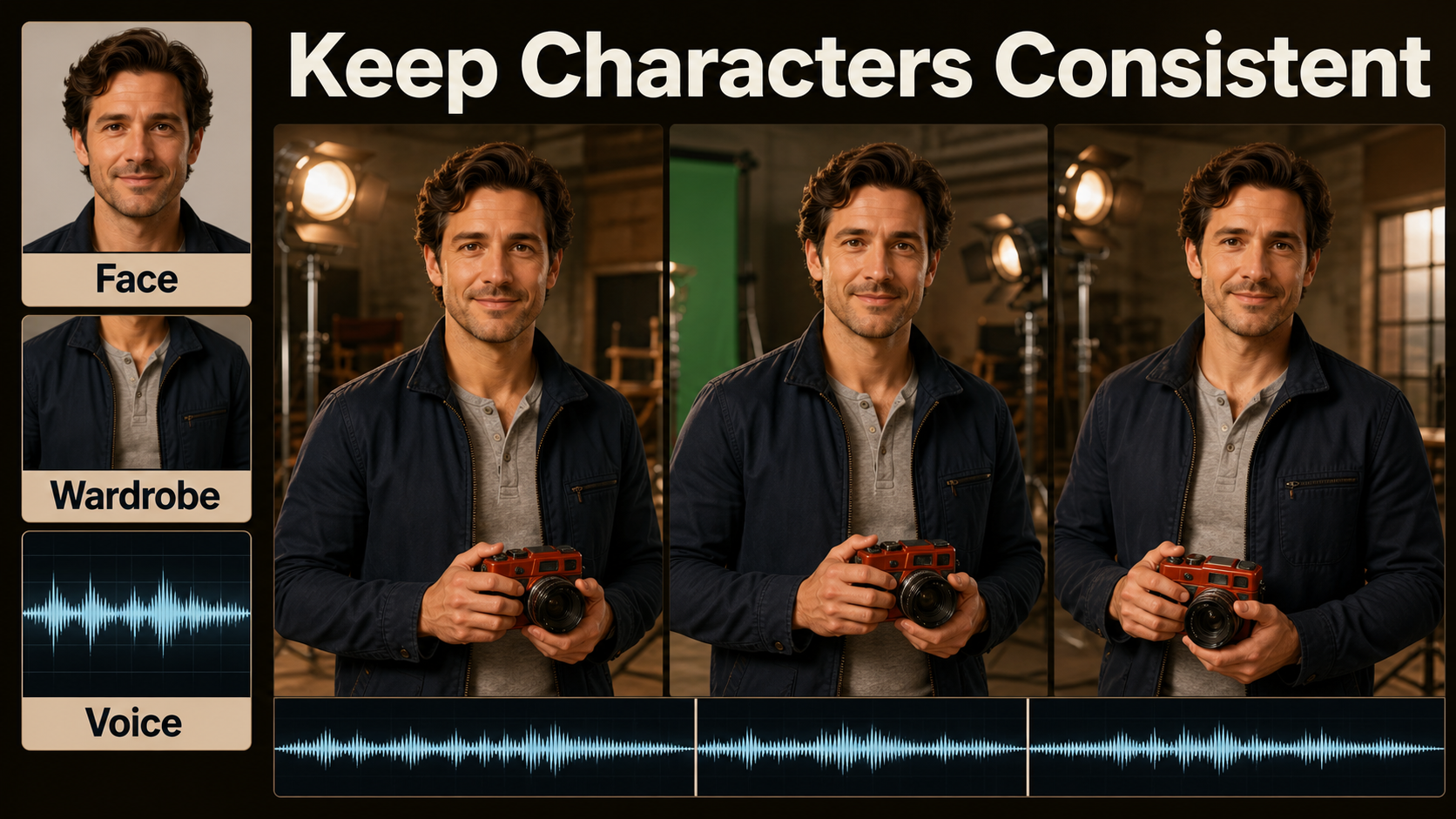
Character, Scene, and Audio Consistency
Consistency is several tests. Subject consistency asks whether a person or object remains recognizable. First-frame consistency asks whether the clip begins from the intended composition. Scene continuity tracks geography, props, weather, light, and screen direction across edits.
Separate Consistency Problems
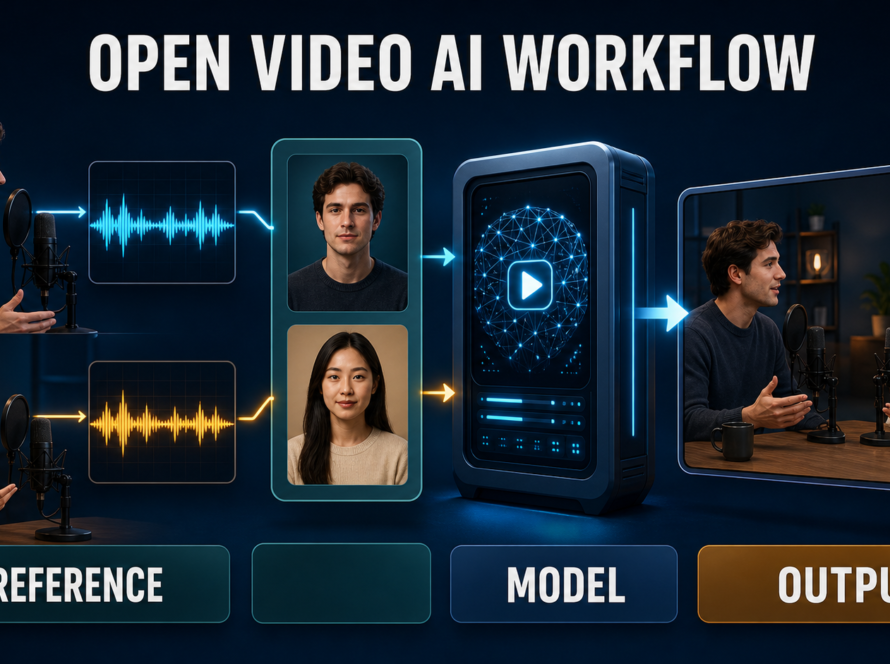
Voice identity is the stable sound of a speaker. Speech synthesis creates words. Lip sync aligns mouth shapes to a finished track. Audio-driven motion uses sound to drive facial or body movement. Native audio-video models may generate sound and picture together, but that does not guarantee reusable voice identity or exact dialogue timing. Obtain consent for cloning, preserve provenance, and label synthetic performances where appropriate.
Continuity Checklist
- Compare face proportions, hair, age cues, and skin details.
- Check wardrobe closures, patterns, jewelry, prop, and holding hand.
- Check furniture order, horizon, light direction, and weather.
- Review first, middle, and final frames for drift.
- Listen for timbre, pronunciation, room tone, and loudness changes.
- Inspect lip timing separately from head and body motion.
- Save the accepted seed, references, prompt, model, and settings.
Practical First-Run Workflow
The first run should prove the installation and expose the next bottleneck, not become the final commercial shot.
- Launch WanGP and note its exact version.
- Select a documented low-memory model compatible with your input.
- Let the checkpoint download finish and verify free disk space.
- Use a 16:9 shot reference with one subject and a simple background.
- Paste the structured prompt and choose a locked camera.
- Set a short frame count, modest resolution, and default profile.
- Generate while monitoring VRAM, RAM, and elapsed time.
- Inspect identity, hands, geometry, motion, and final-frame quality.
- Change one variable, then rerun with the same seed.
Preview Settings
| Setting | Starting point | Reason |
|---|---|---|
| Resolution | 832×480 or nearest preset | Useful composition test with controlled memory |
| Frames | 49–81 | Short enough to diagnose drift |
| Steps | Model default; 15–20 for current non-distilled H3 | Avoid cross-model assumptions |
| Camera | Locked | Separates subject motion from camera errors |
| References | One shot image plus essential identity assets | Reduces conflicting context |
| Post-processing | Off | Measures base render and decoder |
Quality Pass and Export
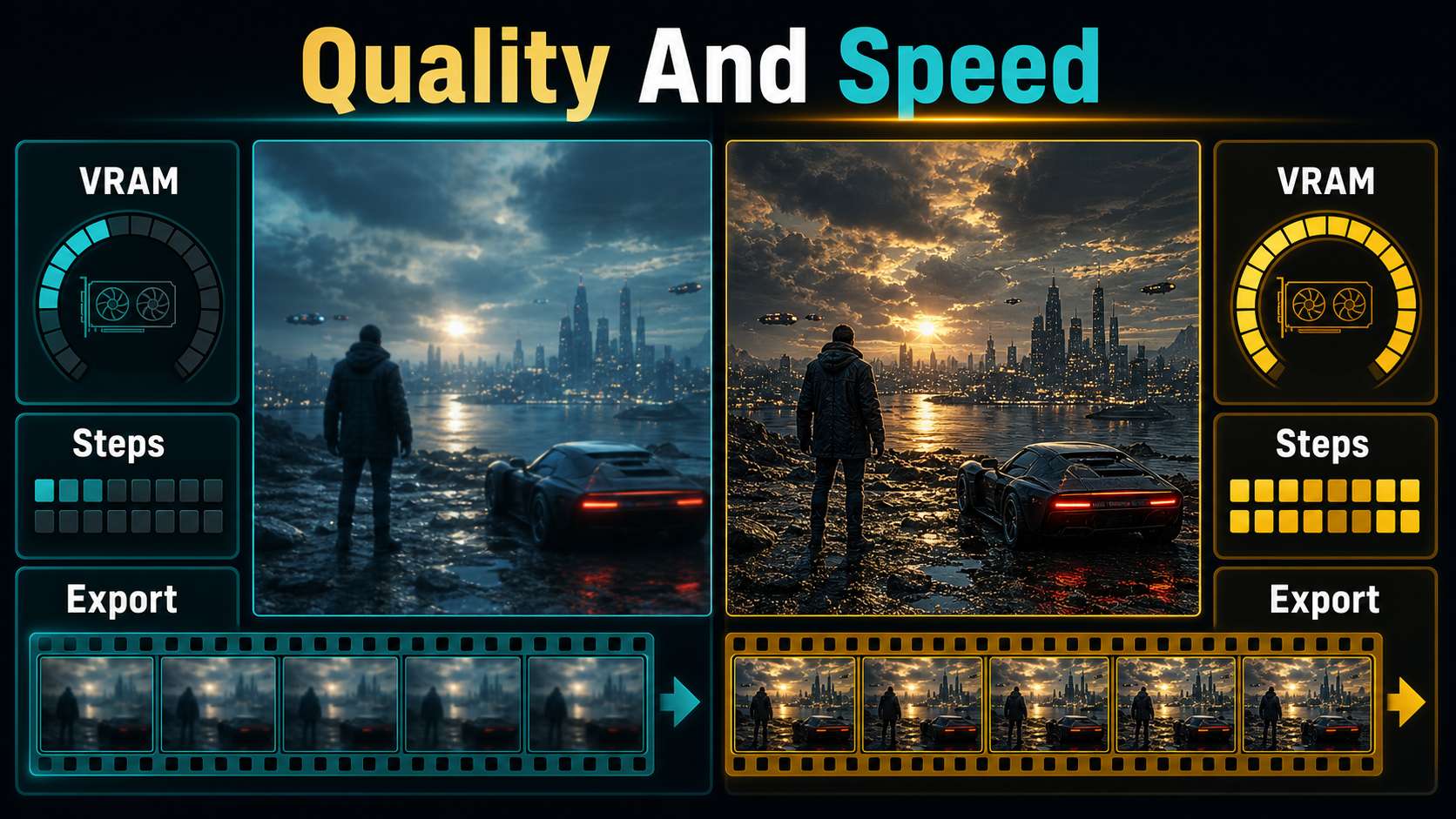
After the preview stabilizes, increase either resolution, duration, steps, or reference complexity—not all four. Run temporal or spatial upscaling as a measured separate pass. Export a high-quality master only after motion is accepted, then create delivery versions in an editor. Keep focal length, aperture look, shutter behavior, light direction, and lens behavior consistent across related shots.
Limitations and Troubleshooting
WanGP makes large models accessible; it cannot remove their compute cost or repair a weak checkpoint. Offloading can be slow, quantization can change fidelity, and integrations can lag upstream releases. Updates may replace checkpoints or require new kernels. Never update a stable production environment immediately before delivery.
Common Fixes
| Problem | Likely cause | Fix |
|---|---|---|
| OOM at start | Checkpoint/profile too large | Use default profile, lower resolution, close GPU apps, choose a smaller model |
| Fails during decode | VAE peak or post-processing | Reduce frames, enable supported tiling, disable upscaling |
| System freezes | RAM or swap exhaustion | Use lower-RAM options, close apps, shorten the job |
| Very slow | Heavy offload or incompatible acceleration | Measure transfers and install only documented kernels |
| Character changes | Conflicting reference or excessive motion | Use a shot reference, simpler action, shorter clip, fixed seed |
| Voice misses lips | Speech and lip sync conflated | Approve speech first, then use a compatible lip-sync model |
| Update breaks launch | Stack mismatch | Return to the saved environment and current install notes |
Edit AI videos here
Generation produces shots, not a finished story. Trim weak frames, align dialogue, normalize audio, add captions, and match color at https://ai.alphatechnologies.vn. Keep the approved master separate from compressed social exports.
Final Recommendation
Install from the official repository, preserve a working environment, and prove one short 480p shot before chasing a larger model. Treat six-gigabyte claims as configuration-specific, verify every model license, and track identity, scene, voice, lip sync, and camera continuity separately. Explore Aikolhub for more practical AI video workflows.
Frequently Asked Questions
Can it run with 6 GB?
Yes, selected models and configurations can. Larger models, longer videos, higher resolution, and post-processing may need more VRAM and substantial system RAM.
Is Wan2GP open source?
Its source is public, but Community License 2.0 restricts commercial uses, so source-available is more precise. Dependencies and model weights have separate licenses.
Which model should I load first?
Choose one documented for your VRAM and input type. Begin with a small or low-memory checkpoint and a short 480p test, then move upward after the pipeline succeeds.
Do references guarantee consistency?
No. Motion, occlusion, camera change, conflicting references, and long duration can still cause identity or scene drift.
Does WanGP create voice and lip sync?
It integrates audio, TTS, talking-head, and native audio-video options depending on the model. Voice identity, speech synthesis, lip sync, and audio-driven motion remain distinct stages.