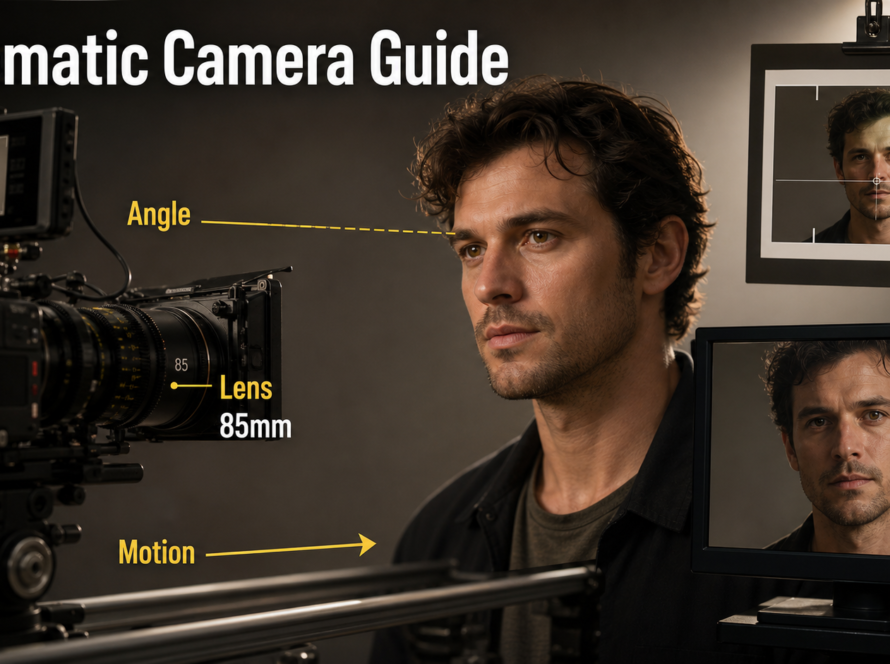
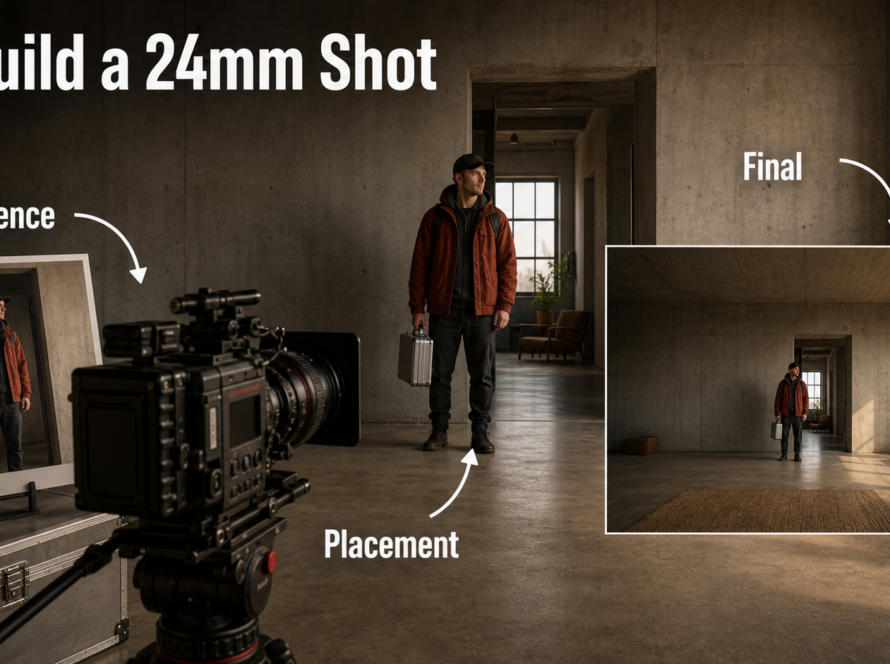
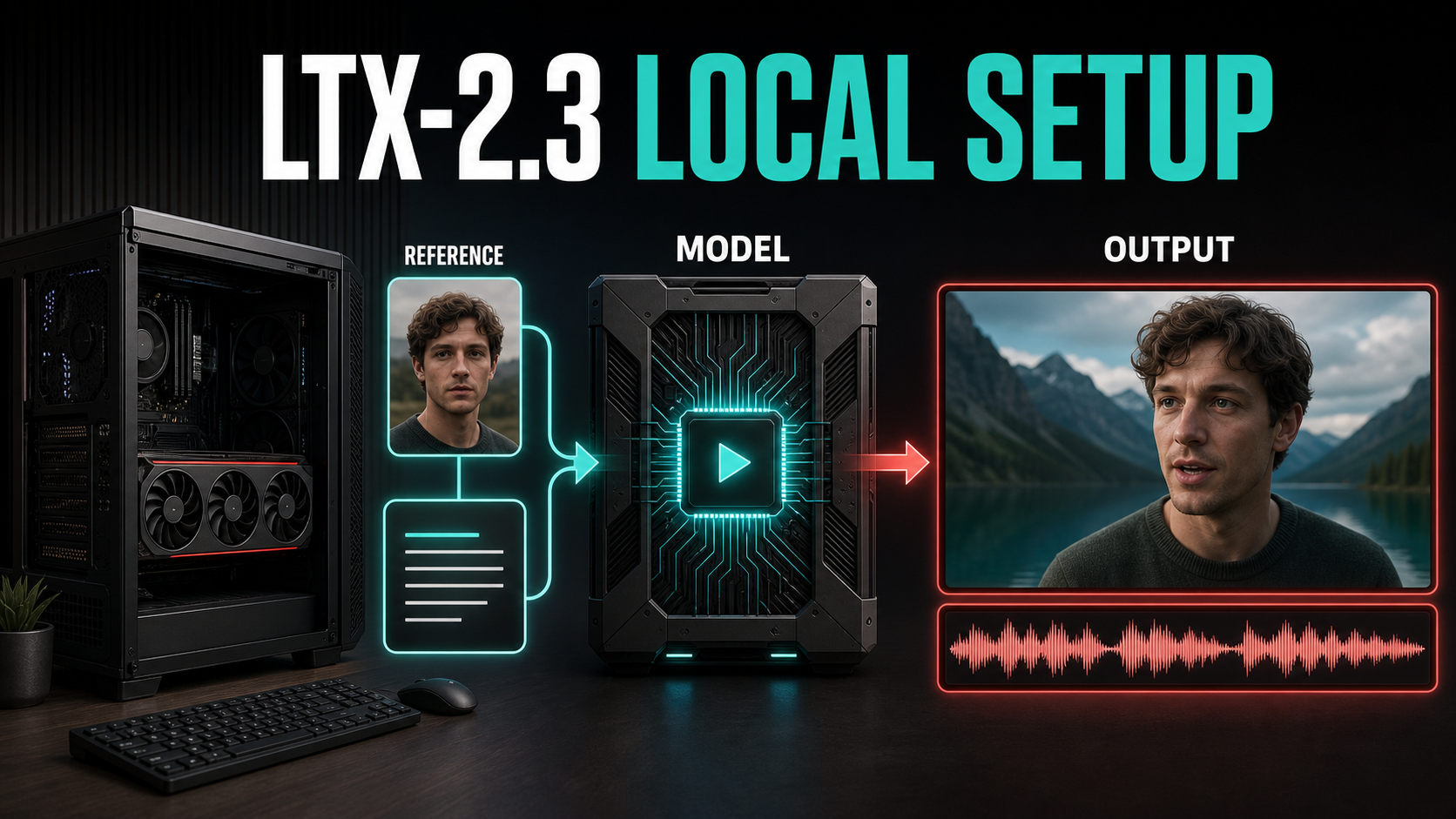
The fastest reliable way to run LTX-2.3 locally is to start with LTX Desktop on a supported Windows or Linux machine with an NVIDIA GPU and at least 16 GB of VRAM. The official quick start also calls for at least 16 GB of system RAM, recommends 32 GB, and reserves about 160 GB of free storage for weights, the environment, and outputs. Creators who need reproducible pipelines can instead use the official LTX-2 repository, its distilled checkpoint, and the documented two-stage or single-stage pipelines.
This guide covers the current LTX-2.3 weights, realistic hardware planning, first-run setup, reference-image prompting, character and scene continuity, synchronized audio, and common failures. It separates verified requirements from practical recommendations so you can choose a local route without assuming that every GPU, checkpoint, or workflow has the same memory profile.
Table of Contents
What changed in LTX-2.3
LTX-2.3 is the current LTX audio-video generation family. Lightricks describes a rebuilt latent space and VAE for sharper detail, a larger gated text connector for tighter prompt adherence, stronger image-to-video motion, cleaner audio, and native portrait generation up to 1080 x 1920. The model can generate synchronized video and audio in the same foundation model rather than treating sound as an unrelated post-production step.
The local release includes a full development checkpoint, an FP8 option for a lower memory footprint, a distilled model for faster inference, and spatial or temporal upscalers. The official repository also lists production pipelines for text-to-video, image-to-video, audio-to-video, keyframe interpolation, retake, HDR, and lip dubbing. Availability does not mean every feature fits every consumer GPU: pipeline choice, quantization, frame count, and resolution still determine memory use.
Licensing deserves a deliberate check. The weights are downloadable, but teams should read the current LTX Model License before commercial deployment. LTX states that its standard local offering is free for companies below its published annual-revenue threshold and directs larger companies to commercial licensing. Do not rely on the label “open source” alone when approving a production use case.
Hardware and installation
Choose Desktop or the repository
LTX Desktop is the simplest route for a first local generation. It packages installation, model setup, prompting, generation, and editing in a desktop interface. The official application is currently marked beta. It supports local generation on Windows and Linux with compatible NVIDIA hardware, while Apple Silicon uses API mode rather than local generation.
The LTX-2 repository is better when you need versioned checkpoints, command-line jobs, Python integration, batch rendering, pipeline selection, or infrastructure automation. It also makes dependencies and model files explicit, which is important for repeatable team workflows. ComfyUI users can use the official ComfyUI-LTXVideo integration and reference workflows, but should update both ComfyUI and its LTX nodes together when moving to a new checkpoint.
Verified local requirements
| Resource | Official baseline | Practical planning note |
|---|---|---|
| GPU | NVIDIA GPU with at least 16 GB VRAM for LTX Desktop local generation | Start with distilled or quantized weights and short previews; advanced pipelines can require more |
| System RAM | 16 GB minimum; 32 GB recommended | Extra RAM helps model loading and prevents the whole workstation becoming unresponsive |
| Storage | About 160 GB free | Keep additional space for caches, intermediate frames, audio, and multiple checkpoints |
| Operating system | Windows or Linux for supported local Desktop generation | macOS uses LTX API mode in the current Desktop documentation |
The 16 GB VRAM figure is a Desktop entry point, not a promise that every LTX-2.3 pipeline will complete at every resolution. A 22B model, upscalers, text encoders, controls, and longer frame sequences can push memory well beyond the baseline. Measure your actual workflow and change one variable at a time.
Weights and first run
Repository setup
For the official code path, clone Lightricks/LTX-2, enter the repository, and create the locked environment with uv sync --frozen. The repository’s current quick start downloads the LTX-2.3 distilled checkpoint and the 2x spatial upscaler from the official Hugging Face model repository, plus a Gemma text encoder. Accept every model’s access terms before scripting downloads.
git clone https://github.com/Lightricks/LTX-2.git
cd LTX-2
uv sync --frozen
# Authenticate with Hugging Face, then download the current files
hf auth login
Use the exact filenames shown by the current official README rather than copying filenames from an old tutorial. LTX-2.3 changed the latent space, and Lightricks warns that LoRAs made for earlier LTX-2 checkpoints need retraining. Keep checkpoints, upscalers, text encoders, and workflow files in a versioned manifest so a future upgrade cannot silently mix incompatible assets.
First video checklist
- Confirm the GPU driver is current and that the application sees the intended NVIDIA GPU.
- Use the distilled pipeline for the first test, with a short duration and conservative resolution.
- Generate a simple one-subject shot before adding camera motion, multiple people, speech, or controls.
- Record checkpoint, seed, prompt, aspect ratio, frame count, pipeline, and quantization.
- Watch peak VRAM, render time, subject stability, motion, and audio alignment.
- Only then enable upscaling or a higher-quality two-stage pipeline.
Reference image and prompt context
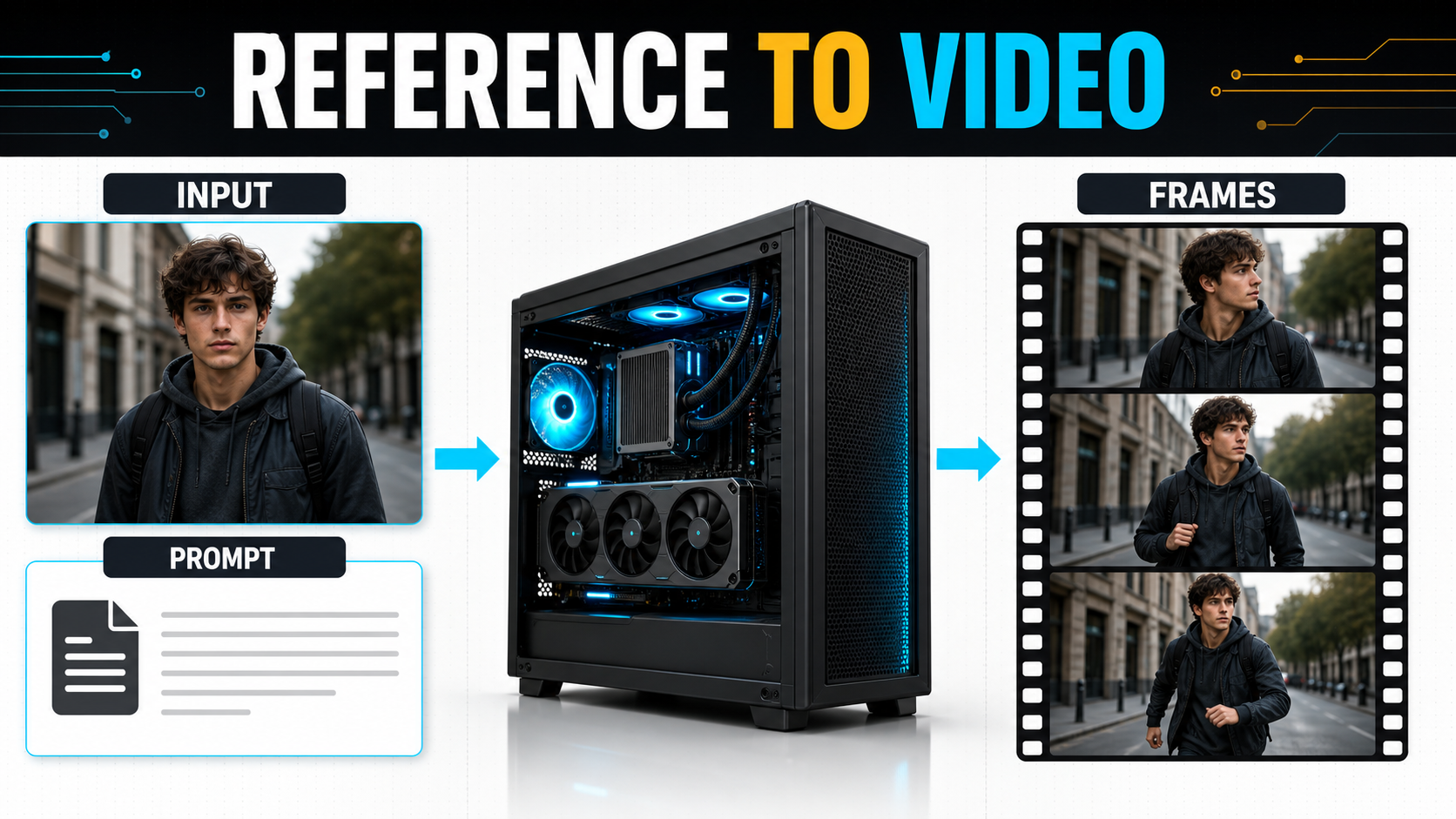
A strong reference image does not replace a motion prompt. The image establishes appearance and composition; the prompt tells the model what changes over time. Use a clean source frame with an unobstructed face, readable silhouette, coherent lighting, and enough background information to establish the scene. Avoid collages as a first frame unless the workflow explicitly supports multiple keyframes.
LTX recommends a literal, chronological prompt written like a cinematographer’s shot description. Start with the main action, then movements and gestures, appearance, environment, camera angle and motion, lighting, color, and any sudden event. Keep the sequence physically plausible.
Prompt template: A woman in a charcoal raincoat pauses beneath a station awning, looks toward an arriving train, then takes one slow step forward. Her coat, short black hair, and silver shoulder bag remain unchanged. Medium-wide eye-level shot, 50 mm lens look, gentle dolly in, wet platform reflections, soft overcast daylight. The train enters the background from left to right while the camera keeps her face sharp.
Negative instructions should target visible failures: no face change, no extra fingers, no wardrobe change, no duplicated bag, no background jump, and no sudden camera shake. Do not overload the prompt with dozens of stylistic adjectives. A precise action timeline gives the model a clearer temporal structure.
Character and scene consistency
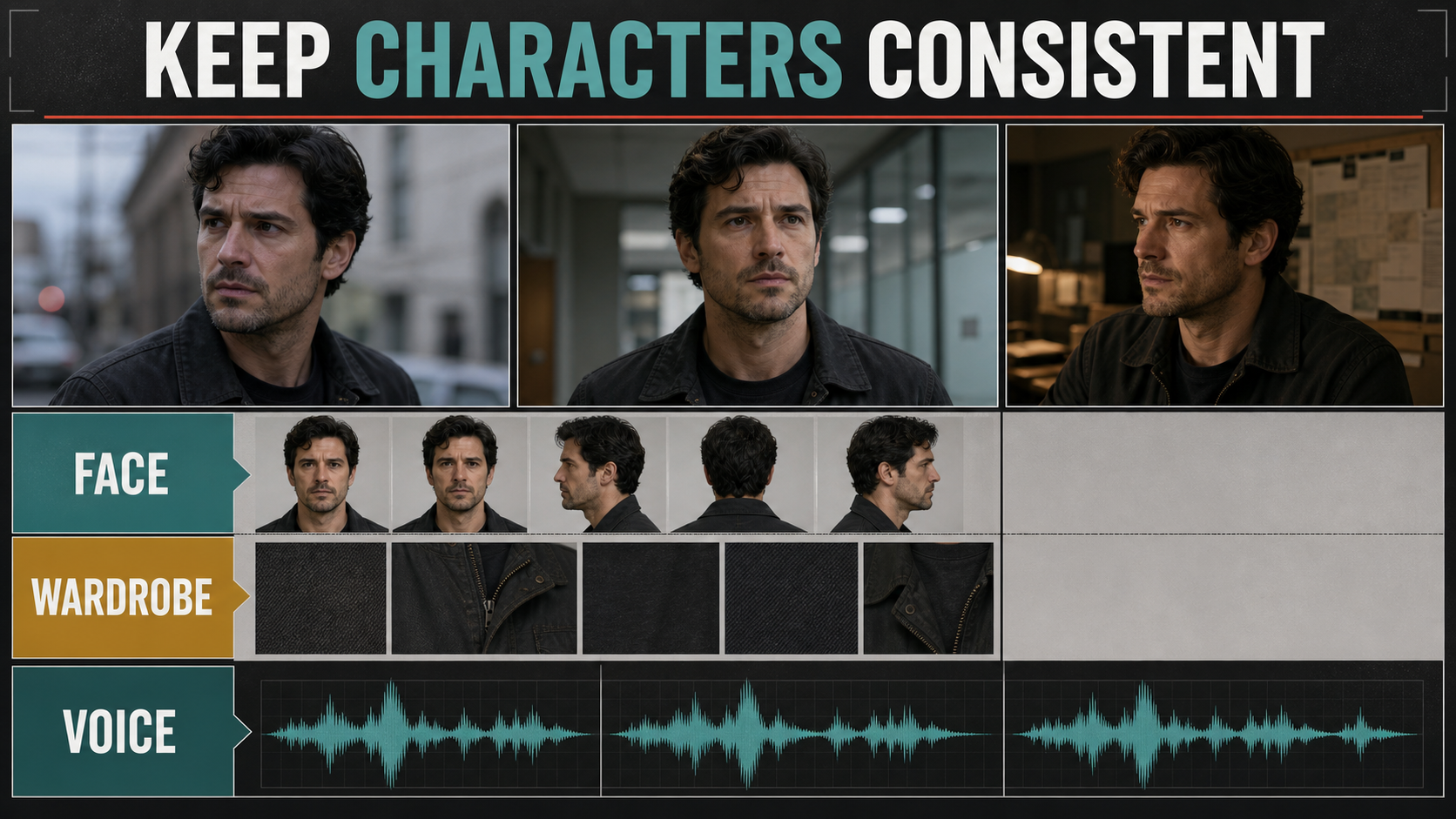
Consistency is a production system, not a single magic phrase. Create a small continuity pack before rendering: a neutral face reference, left and right profiles, full-body wardrobe image, prop sheet, environment plate, color palette, and a one-paragraph scene bible. Reuse the same short identity description in every shot and change only action, framing, or camera movement.
For a sequence, lock the first approved image and generate short shots around it. Compare facial proportions, hairline, clothing seams, prop placement, key-light direction, weather, time of day, and screen direction. Multi-keyframe or interpolation workflows can help connect known visual states, but too many conflicting references can reduce control. When a shot fails, correct the smallest unstable variable rather than rewriting the entire prompt.
Scene continuity is separate from character identity. A stable face can still appear in a room whose doors, windows, furniture, or lighting move between cuts. Save one master environment reference and describe persistent spatial relationships: “window behind subject camera-left, desk two meters ahead, warm lamp on the right.” This context is more actionable than asking for a “consistent room.”
Voice and audio consistency
LTX-2.3 supports synchronized audio-video generation and includes audio-conditioned and lip-dub pipelines in the official repository. However, synchronized audio does not automatically guarantee identical speaker identity across independent generations. Treat voice identity, speech content, lip synchronization, ambient sound, and audio-driven body motion as separate review items.
For repeatable dialogue, begin with one clean, legally usable speaker reference or a fixed external speech track. Keep sample rate, loudness, speaking style, language, pacing, and room character stable. Generate or approve audio before shots when timing matters, then use an audio-to-video or lip-dub workflow designed for that conditioning. Listen for timbre drift, skipped phonemes, noisy silence, incorrect emphasis, and lip closures that do not match consonants.
Practical quality workflow
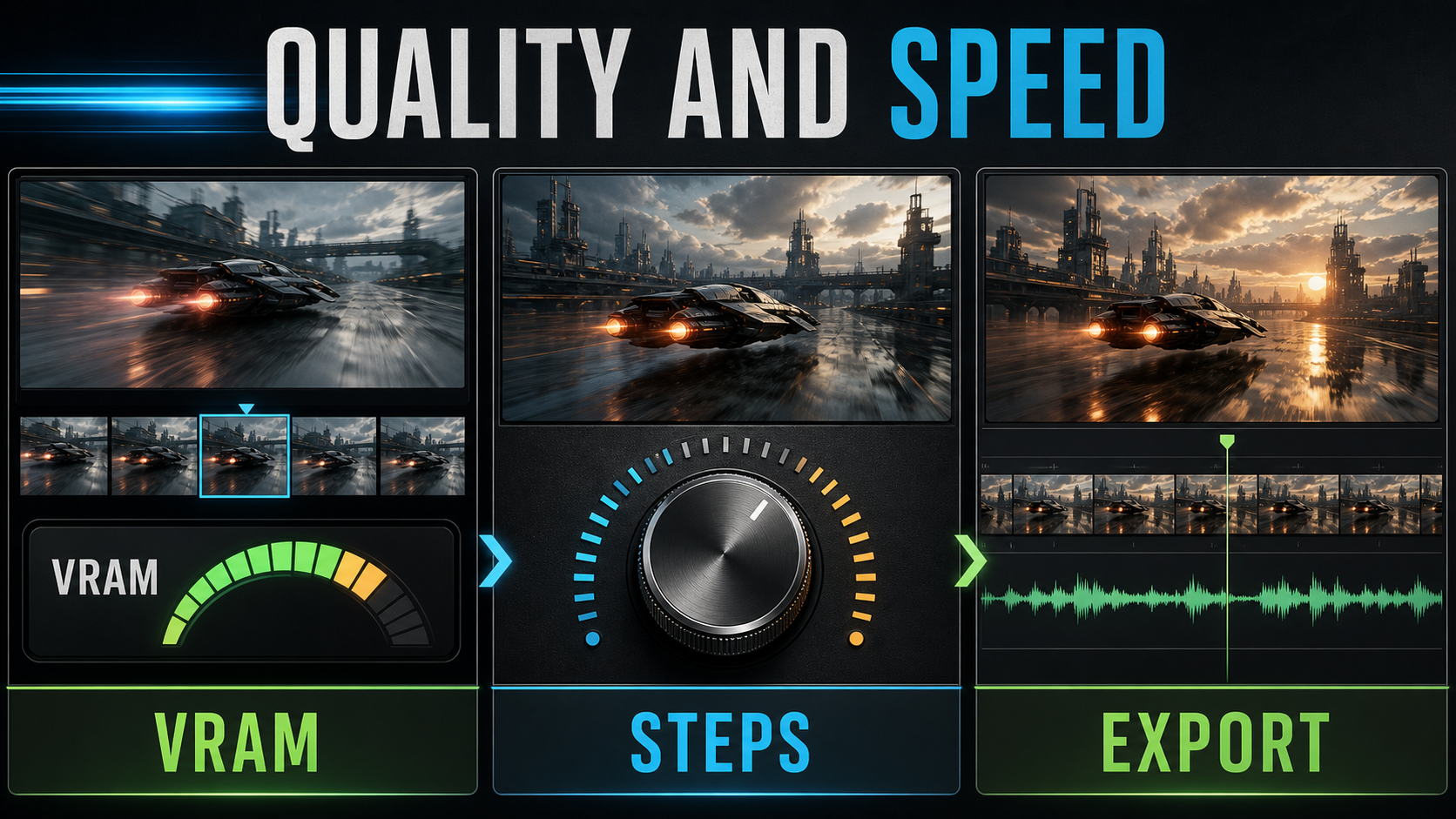
- Preview: use the distilled or one-stage pipeline, short duration, conservative resolution, and one subject.
- Select: compare several seeds and choose motion, expression, composition, and audio timing before spending more compute.
- Refine: preserve the approved prompt and reference; adjust only the failed dimension.
- Quality pass: move the selected setup to the recommended two-stage pipeline or upscaler when the GPU budget allows.
- Continuity review: compare face, wardrobe, props, screen direction, lighting, background geometry, and sound.
- Export: keep a generation manifest beside the final video so the shot remains reproducible.
The official repository identifies the distilled pipeline as the fastest option and documents FP8 quantization to reduce memory footprint. Quantization can make a local run feasible, but it is not a universal quality-free optimization. Compare it against the same seed and prompt, especially around skin texture, small objects, text, and fast motion.
Troubleshooting LTX-2.3
| Problem | Likely cause | First fix |
|---|---|---|
| Out-of-memory error | Resolution, frames, upscaler, controls, or model precision exceed available VRAM | Use distilled/FP8, shorten the clip, lower resolution, and disable optional controls |
| Frozen image-to-video output | Prompt describes appearance but not temporal action | Write a chronological movement sequence and one restrained camera move |
| Character changes mid-shot | Weak reference, long duration, or conflicting descriptions | Use a cleaner reference, shorter shot, and a fixed identity sentence |
| Workflow fails after upgrade | Old nodes, LoRAs, checkpoint names, or latent assumptions | Update the official workflow as a set and verify every asset version |
| Audio drifts or changes voice | Independent generation or unstable conditioning | Lock the source audio and use the documented audio-conditioned pipeline |
If the first run fails, save the complete error and environment details. Include GPU model, VRAM, operating system, driver, repository commit, checkpoint filename, pipeline, quantization, resolution, frame count, and the command used. That evidence is much more useful than reporting that LTX “does not work.”
Edit AI videos here
After generating and reviewing your shots, assemble, trim, caption, and finish them with the online editor at AI Alpha Technologies. Keep the original LTX exports and generation manifest so you can replace only the shots that need correction.
LTX-2.3 FAQ
Can LTX-2.3 run on 16 GB VRAM?
The official LTX Desktop baseline supports local generation on an NVIDIA GPU with at least 16 GB VRAM. Actual success depends on checkpoint, quantization, duration, resolution, upscaling, and controls, so begin with the distilled path and short tests.
Which LTX-2.3 weight should beginners use?
Start with the current distilled checkpoint or LTX Desktop’s guided setup. Use the full development checkpoint when you have established a stable workflow and can justify the additional memory and render cost.
Does LTX-2.3 generate audio?
Yes. LTX-2.3 is an audio-video foundation model, and the official repository includes synchronized generation, audio-to-video, and lip-dub pipelines. Review voice identity and lip sync separately.
Does LTX-2.3 work with ComfyUI?
Yes. Lightricks maintains ComfyUI-LTXVideo and publishes reference workflows. Match the current nodes, checkpoint, upscaler, and workflow version rather than reusing an older graph unchanged.
Can I use old LTX-2 LoRAs?
Do not assume compatibility. Lightricks states that custom LoRAs need retraining for the LTX-2.3 latent space. Test third-party adapters only after confirming their target checkpoint and license.
Is local generation better than the API?
Local generation gives control over weights, privacy, versions, and marginal generation cost, but requires hardware and maintenance. The API avoids deployment work and offers Fast and Pro variants. Choose based on workload, data policy, and total operating cost.