A reliable Wan2.2 S2V production workflow starts with a consented reference image and a clean final audio track, generates short 16 fps segments, and treats speed, visual fidelity, identity, lip timing, and export as separate approval gates. The official S2V-14B model supports 480P and 720P, accepts image plus audio and an optional text prompt, and can also take a pose video.
This guide was verified on August 9, 2026 against the official Wan2.2 repository, S2V model card, generation code, technical report, license, and ComfyUI documentation. The official single-GPU command cites at least 80 GB VRAM; lower-memory packaged workflows use different precision and acceleration tradeoffs that must be tested on your own material.
Table of Contents
What Changed With Wan2.2 S2V
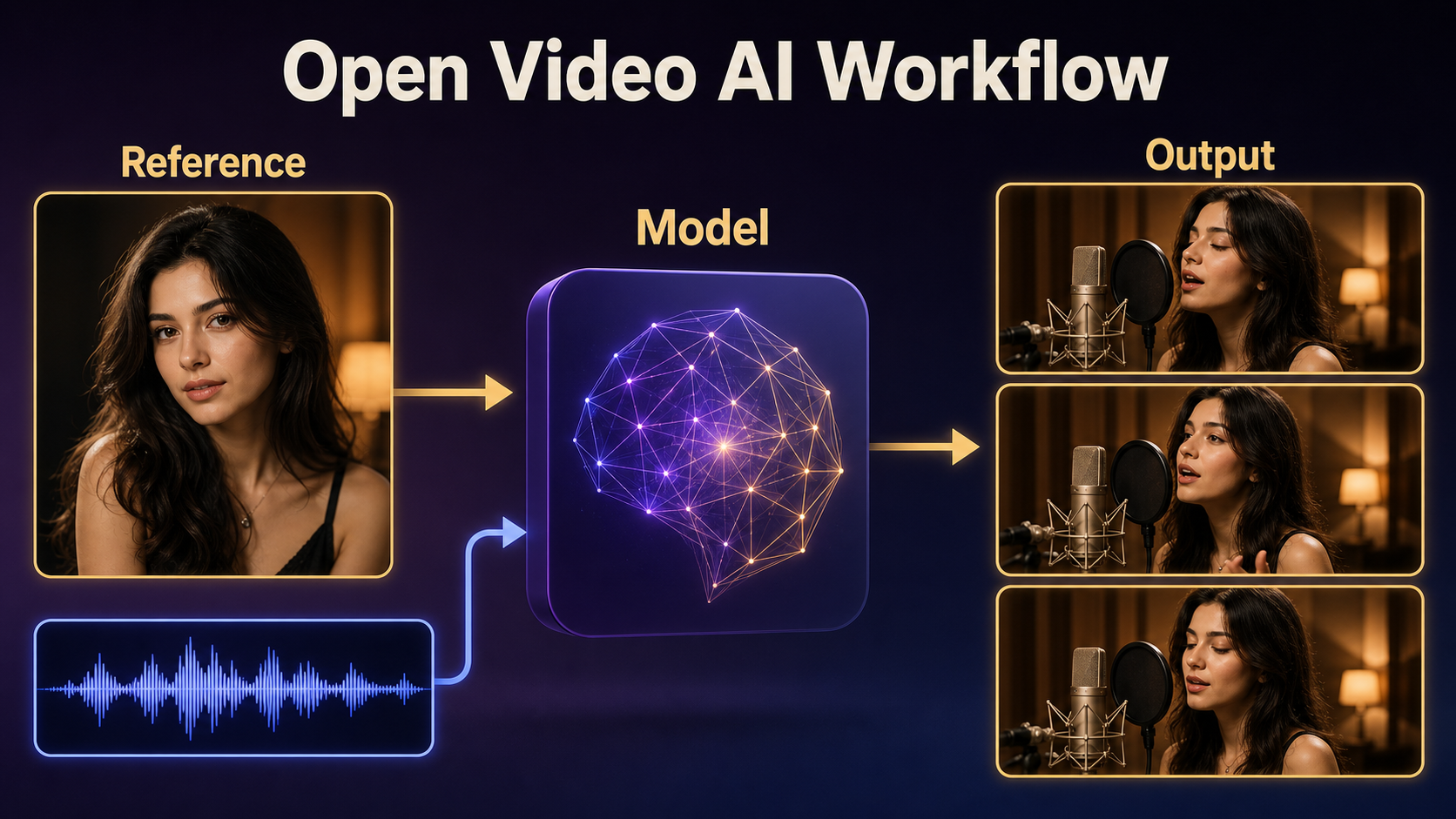
Wan2.2-S2V-14B was released as an audio-driven cinematic video model with inference code, model weights, and a technical report. The project focuses on speech, singing, expressive body motion, camera behavior, long-form generation, and lip-sync editing. It belongs to the Wan2.2 family but is a separate checkpoint from T2V-A14B, I2V-A14B, TI2V-5B, and Animate-14B.
The official code reads a reference image, an audio path, and an optional prompt. It can also synthesize speech through an optional CosyVoice installation or follow a supplied pose video. If --num_clip is not specified, the command-line path automatically adjusts generated length to the input audio; for controlled tests, explicit short segments are easier to review.
What S2V Does and Does Not Do
- It does: animate a reference character from audio, create mouth and expressive motion, accept scene instructions, and merge the source audio with the output.
- It does not: prove speaker consent, repair a noisy recording, guarantee perfect identity, or preserve every prop and background detail across long segments.
- It is not: the I2V-A14B model with audio added, a general voice-cloning tool, or a guarantee of physically exact camera metadata.
Use the supplied audio as the timing and performance condition. If you need a synthetic voice, create and approve it as a separate, consented source before generation.
Hardware, Installation, and License
The official repository requires PyTorch 2.4.0 or newer and provides single- and multi-GPU S2V commands. Its single-GPU example uses offload and dtype conversion and states at least 80 GB VRAM. Multi-GPU inference uses FSDP and DeepSpeed Ulysses. These are reference requirements, not claims for every third-party quantization.
The repository and official model card identify Apache License 2.0. Retain the license and notices when redistributing covered materials, and separately verify the rights for reference images, recordings, music, fonts, checkpoints, LoRAs, and other dependencies.
Official Command-Line Path
git clone https://github.com/Wan-Video/Wan2.2.git; cd Wan2.2; pip install -r requirements.txt; huggingface-cli download Wan-AI/Wan2.2-S2V-14B --local-dir ./Wan2.2-S2V-14B; python generate.py --task s2v-14B --size 1024*704 --ckpt_dir ./Wan2.2-S2V-14B/ --offload_model True --convert_model_dtype --prompt "Warm studio performance, restrained gestures" --image singer-reference.png --audio approved-voice.wavFor S2V, --size sets output area while aspect ratio follows the input image. The source code exposes --infer_frames, defaulting to 80 and requiring a multiple of four for 14B S2V. Pin a repository commit and record every command rather than relying on memory.
ComfyUI Native Path
The official ComfyUI tutorial lists S2V diffusion, text encoder, audio encoder, and VAE files, with FP8-scaled and BF16 diffusion choices. The template uses FP8 to reduce VRAM; the documentation suggests BF16 when reducing quality degradation matters. Its extension workflow uses 77-frame chunks at 16 fps, or about 4.8125 seconds per chunk.
ComfyUI documents a four-step Lightning LoRA path at CFG 1.0 and a 20-step path at CFG 6.0. It warns that the Lightning LoRA is not specifically trained for S2V, many keys do not match, and it can significantly reduce dynamics and quality. Treat it as a preview shortcut, not a free final-quality improvement.
Prepare Reference Image, Prompt, and Audio
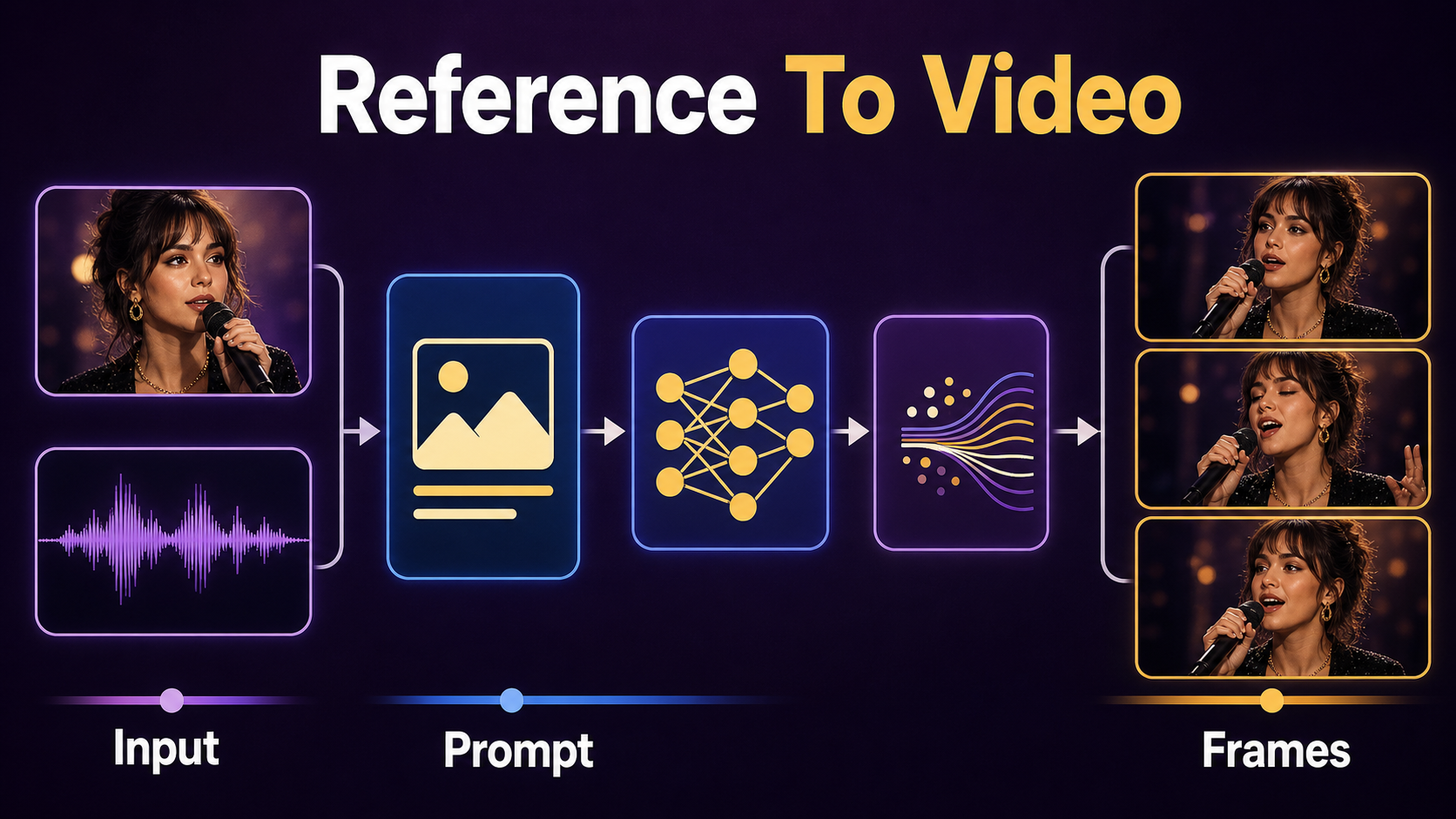
The reference image establishes appearance, crop, environment, and light. Match the intended output aspect ratio and show enough face detail for the shot. Half-body or full-body images can work, but the mouth, jaw, hands, clothing edges, and any microphone must be clean and unambiguous.
Audio should already be the approved performance: remove long silence and distracting room noise, avoid clipping, and preserve natural breaths. Do not time-stretch after generation unless you plan to retime video too. Use a consistent loudness and sample format across segments.
Source-Material Checklist
- Written consent for the person’s image and voice, plus intended distribution.
- One clean reference with stable face, hair, wardrobe, hands, and background.
- Final dialogue or singing take without clipping, abrupt edits, or unapproved music.
- Pronunciation sheet for names, brands, and multilingual lines.
- Prompt describing setting, performance energy, gesture range, camera, and continuity locks.
- Segment map with timecode, transcript, emotional beat, and expected framing.
Copyable S2V Prompt Template
“Intimate studio performance by the person in the reference image, framed chest-up at eye level. The singer performs the supplied approved audio with natural mouth articulation, subtle breathing, small head turns, and restrained right-hand gestures. Warm key light from camera left, dim amber practical lights behind, black stage jacket unchanged, microphone fixed, background and exposure stable. Slow two-percent camera push only. Preserve face, hair, teeth, jacket, microphone, lighting, and framing. No cuts, no extra people, no duplicated fingers, no exaggerated jaw motion, no camera shake.”
For a dialogue scene, replace “singer” with the role and describe the listening behavior between phrases. Avoid requesting large dance motion, a sweeping orbit, a costume change, and tight lip sync in one segment.
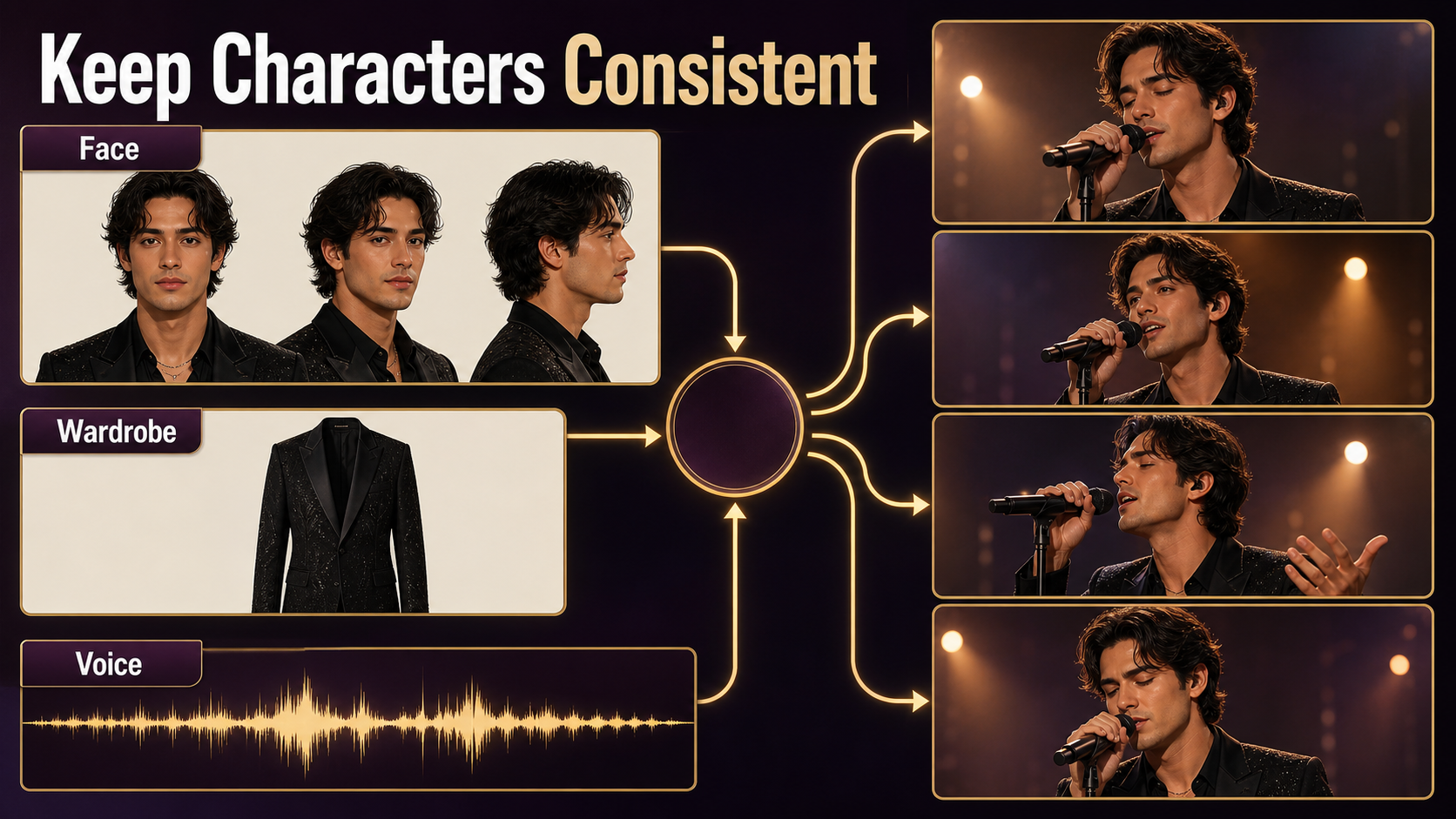
Character, Scene, and Voice Consistency
Reference-image identity, voice identity, lip synchronization, body motion, and scene continuity are different problems. Review them separately. A synchronized mouth can still have a drifting jaw; a stable face can still produce the wrong emotional rhythm; a consistent speaker can still appear in changing wardrobe or light.
Separate the Consistency Tests
- Face: inspect eye spacing, jaw, teeth, hairline, ears, and skin detail at matched frames.
- Wardrobe and props: compare fabric, closures, jewelry, microphone shape, hand contact, and orientation.
- Voice: confirm the output uses the approved source audio without unintended replacement or timing drift.
- Lip sync: check plosives, closed-mouth consonants, vowels, pauses, and the final frame of each phrase.
- Body motion: reject frozen shoulders, repeated gestures, twitching fingers, and motion unrelated to prosody.
- Scene: lock light direction, background objects, camera height, focus, and exposure.
Save an approved face sheet, wardrobe card, audio master, transcript, and scene still beside the seed and settings. Long-form consistency comes from disciplined segment records, not one very long generation.
Speed, Quality, and Export Settings
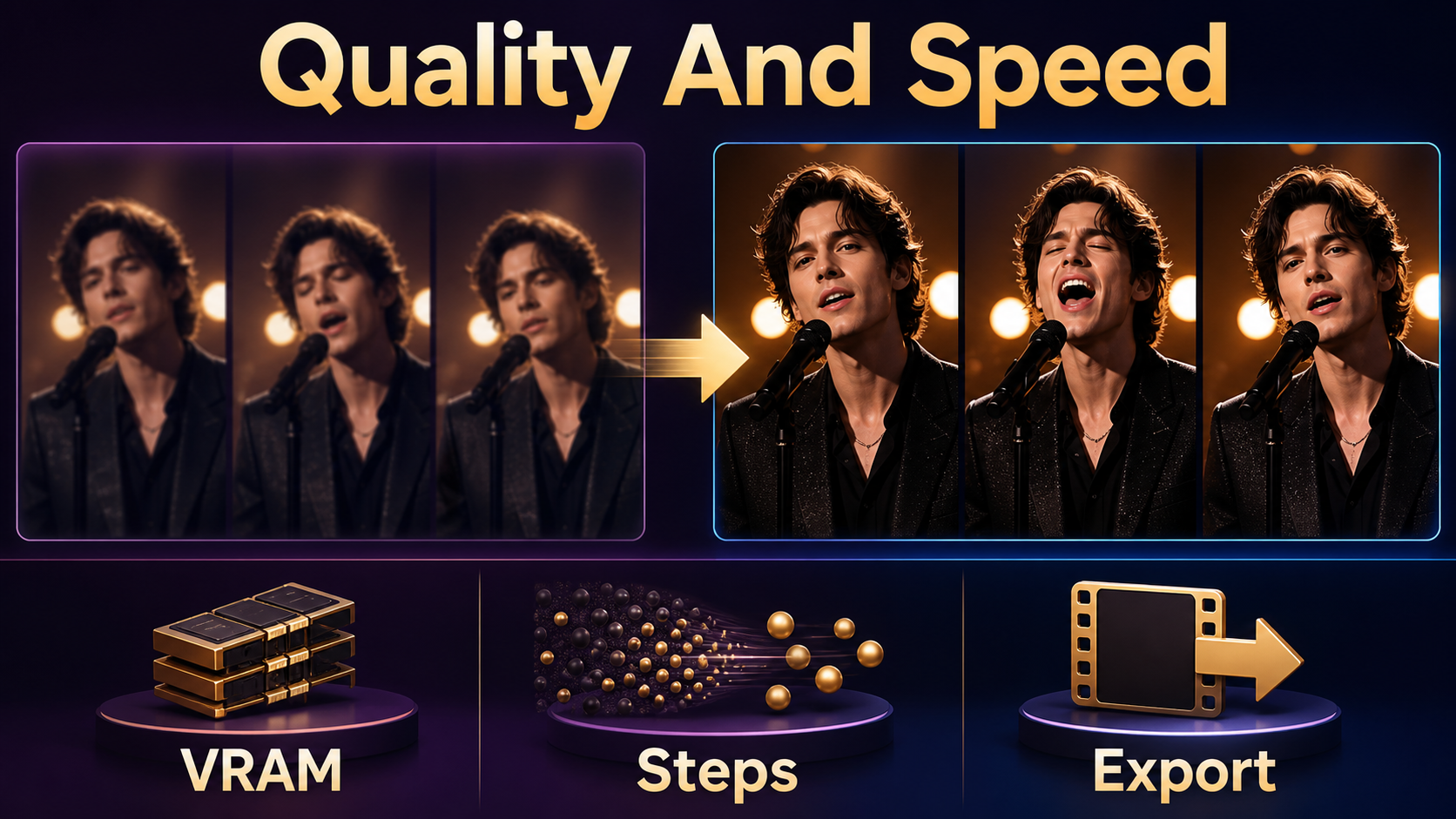
Start with the cheapest pass that answers the current question. A small or accelerated preview can test transcript timing and overall motion, but approve a final only after checking the higher-quality path. Do not compare speeds from different GPUs, precision, resolutions, or segment lengths as though they were equivalent.
Verified Settings Table
| Choice | Fast preview | Quality review | Verified note |
|---|---|---|---|
| Resolution | 480P | 720P | Official S2V supports both |
| Precision | FP8-scaled packaged model | BF16 when resources allow | ComfyUI notes FP8 saves VRAM; BF16 reduces degradation |
| Sampling | 4 steps, CFG 1.0 | 20 steps, CFG 6.0 | ComfyUI template; four-step LoRA can reduce dynamics and quality |
| Cadence | 16 fps | 16 fps source | Official ComfyUI S2V timing |
| Chunk | 77 frames | 77-frame controlled segments | About 4.8125 seconds at 16 fps |
| CLI frame block | Short explicit test | 80-frame default block | infer_frames must be a multiple of four |
Export a constant-frame-rate intermediate at the native cadence before conversion. If delivery needs 24, 25, or 30 fps, use deliberate frame interpolation or conforming in post and inspect lips frame by frame. Simply changing the container frame-rate flag can alter duration and break synchronization.
Practical Production Workflow
- Secure image, voice, music, and distribution permissions.
- Lock the transcript and final clean audio before generating video.
- Create the reference at final aspect ratio and validate face, hands, wardrobe, prop, and background.
- Install a pinned official environment or a documented ComfyUI workflow.
- Run a short preview to test mouth timing, gesture energy, and framing.
- Change one variable at a time; keep the same audio segment for comparisons.
- Render the approved segment through the quality path.
- Review identity, lip sync, body motion, scene, and audio independently.
- Repeat with overlap handles, then assemble, color-match, caption, mix, and export.
Long-Form Segment Planning
At 16 fps, one 77-frame ComfyUI extension covers about 4.8 seconds. Divide a 14-second line into three planned extensions, but cut on pauses or musical phrasing rather than arbitrary arithmetic. Keep handles for transitions, and compare the first and last stable frame of adjacent segments.
When using the command-line path, the code can repeat clips according to audio length. Automatic length is convenient, but a production team should still map phrases and inspect seams. If continuity fails, regenerate one segment instead of the whole performance.
Limitations and Responsible Use
S2V can drift in identity, teeth, fingers, wardrobe, props, light, and background, especially across long clips. Fast acceleration can reduce motion and visual quality. Pose video adds control but also adds source-motion rights and preprocessing. Exact camera and lens terms may be interpreted stylistically.
Use only voices and likenesses you have permission to animate. Preserve consent records, source audio, transcripts, prompts, seeds, model versions, and edits. Disclose synthetic media when context could mislead viewers, and never present an unapproved synthetic performance as something a real person said or sang.
Troubleshooting
Fast Fix Table
| Failure | Likely cause | Fix |
|---|---|---|
| Lips lead or lag | Audio retimed or export cadence changed | Return to clean source; export native constant 16 fps before conversion |
| Mouth looks exaggerated | Performance prompt too intense | Request restrained articulation and shorter segment |
| Face drifts | Weak reference or long clip | Use a sharper closer image and regenerate one short phrase |
| Motion feels frozen | Acceleration or low guidance reduced dynamics | Compare the 20-step quality path and add modest gesture direction |
| Hands flicker | Occlusion near microphone | Simplify pose, crop closer, or keep hands below frame |
| Out of memory | 14B model and resolution | Use offload, lower preview resolution, FP8 preview, or documented multi-GPU path |
| Segment seam jumps | Different reference or scene state | Use overlap handles and a matched boundary reference |
Edit AI videos here
Assemble approved segments, slip audio by individual frames, replace unstable cut points, add captions, mix sound, and create delivery exports at https://ai.alphatechnologies.vn. Editing lets Aikolhub readers preserve the strongest synchronized moments instead of accepting every generated frame.
Final Recommendation
Lock audio first, build a clean consented reference, preview short segments, and promote only approved motion to the quality render. Treat the four-step accelerated path as a timing test, not an automatic final, and keep native 16 fps timing intact until post-production. Explore Aikolhub for more practical AI-video setup, consistency, and export workflows.
Frequently Asked Questions
What inputs does Wan2.2 S2V require?
The official path combines a reference image and audio with an optional text prompt. It can also accept a pose video, and optional CosyVoice support can synthesize speech.
What frame rate does S2V use?
The official S2V configuration and ComfyUI workflow use 16 fps. Preserve that native cadence before converting to a delivery frame rate.
How much VRAM does the official path need?
The official single-GPU example states at least 80 GB VRAM with offload and dtype conversion. Packaged FP8 or multi-GPU paths have different tradeoffs.
Does S2V clone a voice?
No. S2V animates video from supplied audio. Voice synthesis or cloning is a separate process that requires explicit consent and its own model and license review.
Should I use four or twenty steps?
Use four steps for a fast preview when its quality is acceptable. Use the documented 20-step path for final comparison because the Lightning shortcut can reduce dynamics and quality.