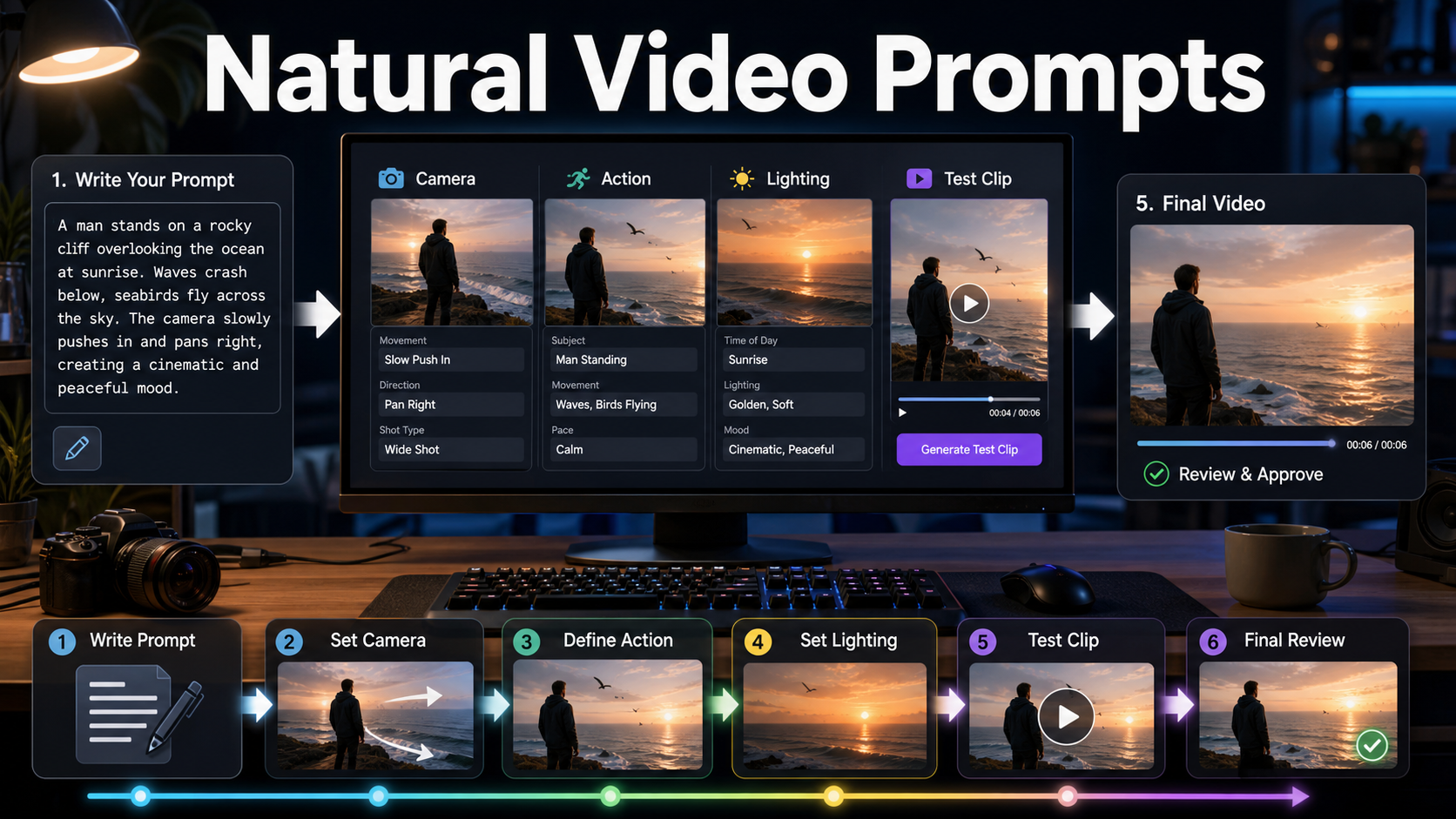
Text to video AI prompts work best when they describe motion as a short film direction, not as a static image prompt. Updated on June 30, 2026, the most reliable structure is to specify the subject, action, camera movement, scene timing, lighting, and what should stay consistent from the first frame to the last.
For creators, marketers, developers, and AI tool users, the goal is not just to get a beautiful frame. The goal is to get a clip where the product, person, camera, and environment move in a believable way that can survive editing, captions, music, and paid social formats.
What makes a text to video AI prompt feel natural?
A natural text to video AI prompt gives the model enough temporal information to understand what changes during the clip. If the prompt only says “a woman holding a coffee cup in a studio,” the model may produce a pretty but stiff shot. If it says “a woman slowly lifts a coffee cup, smiles, and turns slightly toward morning window light while the camera pushes in,” the model has a sequence to follow.
Official video-generation tools from OpenAI, Google Gemini/Veo, Runway, and Luma all support prompt-driven video workflows in different ways. Their exact durations, resolutions, model names, and pricing can change, so always check the official docs before building a paid production workflow. The durable lesson is the same across platforms: clearer motion direction produces more controllable test clips.
The six-part prompt formula
Use this structure when you want smoother movement and fewer unusable generations:
| Prompt part | What to write | Why it matters |
|---|---|---|
| Subject | Who or what appears in the clip | Prevents the scene from drifting |
| Action | One main movement or gesture | Keeps the clip focused |
| Camera | Push in, pan, tilt, tracking, handheld, locked-off | Controls visual rhythm |
| Timing | Beginning, middle, end of the shot | Helps the model stage motion |
| Lighting | Time of day, softness, direction, mood | Improves continuity between frames |
| Constraints | No morphing, keep product label stable, no extra hands | Reduces common AI video artifacts |
A reusable prompt template
Start with this template and replace the bracketed parts:
Create a [duration/style] video of [subject] in [setting].
The subject [main action] from start to finish.
Camera: [camera movement], [lens or framing if relevant].
Lighting: [time of day], [mood], [key light direction].
Motion: [slow/medium/fast], realistic physics, no sudden jumps.
Keep consistent: [face/product/brand colors/clothing/background].
Avoid: distorted hands, warped text, extra objects, flicker, abrupt cuts.
This template works especially well for short ads, product demos, social posts, landing page hero clips, and explainer visuals. For API workflows, store the template in your app and expose the key fields as form controls so non-technical users do not need to write every detail from scratch.
Prompt examples for creators and marketers
Product ad prompt
Create a 6-second cinematic video of a matte black travel mug on a wooden desk beside a laptop.
The mug slowly rotates as steam rises naturally from the lid.
Camera: slow push-in from a three-quarter angle, shallow depth of field.
Lighting: warm morning window light from the left, soft shadows.
Motion: calm and realistic, no sudden camera shake.
Keep consistent: mug shape, black color, desk objects, clean background.
Avoid: distorted logo text, extra cups, melting edges, flicker.
Creator talking-head B-roll prompt
Create a short vertical video of a creator preparing to record a tutorial in a small studio.
The creator adjusts a microphone, looks at the camera, and taps record on a laptop.
Camera: gentle handheld movement, medium shot, slight parallax.
Lighting: soft key light, practical desk lamp, professional but natural mood.
Keep consistent: face, hands, microphone position, laptop placement.
Avoid: extra fingers, unreadable screen text, jump cuts, duplicated microphones.
App demo background prompt
Create a clean video of a designer reviewing an AI storyboard on a desktop monitor.
The cursor moves through four storyboard frames, then the timeline preview plays.
Camera: locked-off over-the-shoulder shot with a subtle push-in.
Lighting: neutral office lighting, clear monitor glow.
Keep consistent: storyboard layout and timeline position.
Avoid: fake brand logos, random unreadable UI text, warped interface elements.
How to describe camera movement
Camera words are often the difference between a natural clip and a floating scene. Use one clear camera instruction per generation. A slow push-in feels intimate and premium. A pan reveals space. A tracking shot follows a subject. A locked-off camera is better for product clarity, screenshots, and clips with text.
Avoid stacking too many camera moves in a short clip. “Push in, pan right, tilt up, rotate around, zoom out” is likely to confuse the model. For most 4-10 second clips, one primary camera move plus one subject action is enough.
How to describe subject motion
Subject motion should be specific, physical, and limited. Instead of “the person is excited,” write “the person smiles, raises one hand in a small wave, and leans slightly toward the camera.” Instead of “the product looks premium,” write “the bottle slowly rotates on a turntable while condensation beads remain stable on the glass.”
When a clip must show a face, hands, text, packaging, or a product label, add a consistency line. AI video models can still distort fine details, especially during fast movement, so slow motion, stable framing, and fewer scene changes usually produce better commercial output.
Prompting for different video formats
| Format | Best prompt strategy | Common mistake |
|---|---|---|
| Short ad | One product, one action, one clear camera move | Trying to tell a full story in one clip |
| TikTok/Reels B-roll | Vertical framing, human action, clean background | Forgetting safe space for captions |
| Landing page hero | Slow motion, stable subject, loop-friendly ending | Too much movement behind headline text |
| Explainer visual | Simple diagram-like motion and readable objects | Asking for dense UI text inside the video |
| Developer demo | Screen context, cursor movement, consistent interface | Relying on generated UI text for accuracy |
Workflow for better test clips
1. Generate a still-frame concept first
If the tool supports image-to-video or reference frames, create or select a strong first frame before making the clip. This gives the model a clearer subject, composition, and color palette. It is especially useful for product videos, character consistency, and branded campaigns.
2. Test motion with low-risk prompts
Start with a simple action and one camera move. Review the clip for physics, identity, hands, product stability, flicker, and whether the final frame can cut cleanly into your edit.
3. Add constraints after reviewing failures
Do not overload the first prompt with every possible negative instruction. Watch what fails, then add targeted constraints such as “keep the bottle label stable” or “no new objects appear on the desk.”
4. Save winning prompt patterns
When a prompt works, save it as a reusable pattern with variables for product name, setting, lighting, and aspect ratio. This turns AI video from a guessing game into a repeatable creative workflow.
Pros and cons of text to video AI
| Pros | Cons |
|---|---|
| Fast concepting for ads, storyboards, and social clips | Fine text and logos may still distort |
| Useful for B-roll when filming is expensive | Motion can drift without clear direction |
| Can generate variations for A/B testing | Commercial rights depend on each tool’s terms |
| Pairs well with editing, captions, voice, and music tools | Long scenes and complex interactions need more review |
Edit AI videos here
After generating clips, you still need to trim, caption, brand, and package them for the right platform. You can edit AI-generated clips, add captions, and prepare social-ready versions at https://ai.alphatechnologies.vn. A practical workflow is to generate several short clips, choose the cleanest motion, then edit the best version into a final ad, explainer, or product post.
Final checklist before publishing
- Does the first frame clearly show the subject?
- Is there only one main action?
- Is the camera movement simple and intentional?
- Do hands, faces, product edges, and labels stay stable?
- Can captions fit without covering the subject?
- Do the tool terms allow your intended commercial use?
The best text to video AI prompts read like concise directing notes. Start with a clear subject, add one believable action, choose one camera move, and review the result like an editor. For more AI video, image, voice, and automation workflows, explore the AI tool guides and resources on Aikolhub.
FAQ
What is the best prompt structure for text to video AI?
The best structure is subject, action, camera movement, timing, lighting, and constraints. This tells the model what should change during the clip and what should remain stable.
Why do AI videos sometimes look unnatural?
AI videos often look unnatural when the prompt is too broad, asks for too many movements, or includes fine details such as hands, labels, or dense text without stability constraints.
Should I use text-to-video or image-to-video?
Use text-to-video for quick ideas and broad scenes. Use image-to-video or reference frames when product accuracy, character consistency, or brand visuals matter.
Can I use AI-generated videos in ads?
Often yes, but commercial use depends on the specific tool, plan, source assets, and terms. Check the official terms before using generated clips in paid campaigns.
How long should an AI video prompt be?
A good prompt is usually one concise paragraph plus constraints. It should be specific enough to direct motion but not so crowded that the model has to satisfy conflicting instructions.